
CS2 console commands have different restrictions. Some change your settings, others manage a server, and commands marked cheat work only after you enter sv_cheats 1 on your own server. Start by searching for commands and checking their descriptions so you can tell a useful setting from an outdated config line.
- Open
- Enable the console in settings, then press ~
- Find
- find searches; help shows a description
- Clear
- clear removes text from the console
- Third person
- Only on your own server with sv_cheats 1
- Save
- host_writeconfig saves your player settings
How to Enable and Open the Console
In the game settings, turn on “Enable Developer Console.” Press ~ (the tilde key) to open the console. The toggleconsole command also opens and closes it.
- Open the game settings and find “Enable Developer Console.”
- Turn it on, then press ~.
- Enter the command you need. If the variable takes a value, add it after the name, for example cl_showfps 1.
The -console and -dev launch options also enable the console and override the setting in the menu. If the console doesn't behave as expected, check whether either launch option is enabled.
How to Search for CS2 Console Commands
The find command searches command names and descriptions. For example, find fps helps you look for FPS settings. Then enter help fps_max to read about a specific variable.
| Command | What it does |
|---|---|
| find <word> | Searches for a word in command names and descriptions |
| help <command> | Shows a command's description |
| cvarlist | Lists commands and variables |
| differences | Shows variables with values that differ from their defaults |
| condump | Saves the console text to a condumpXX.log file |
| clear | Clears the console text |
| echo <text> | Prints the specified text in the console |
As of October 3, 2026, CS2 has 5,570 commands and variables. A total of 1,456 are marked cheat and require sv_cheats 1 on your own server. sv_cheats is set to 0 by default. Many of the remaining entries are developer commands that players can't use.
Run differences before editing an old config. It makes it easier to spot settings that already differ from their defaults and avoid changing the same thing twice.
- Variable
- A setting with a value, for example fps_max 120.
- cheat
- A command marked as requiring sv_cheats 1 on your own server.
- cfg
- A command file you can run with exec.
Useful CS2 Commands for a Match
This section covers settings for the FPS counter, matchmaking, chat, and the interface.
- FPS counter at the top of the screen
- FPS cap
- FPS cap in menus
- Preferred maximum ping when searching for a match
- Gamma in fullscreen mode
- Mutes enemy voice and text chat
- Keeps voice chat on for friends and party
- Replaces names of non-friends with neutral ones
- Hides other players' avatars
- The use key opens the buy menu in the buy zone
- Disables number keys in the buy menu
- Your own bullet tracers
- Records a kill after you die
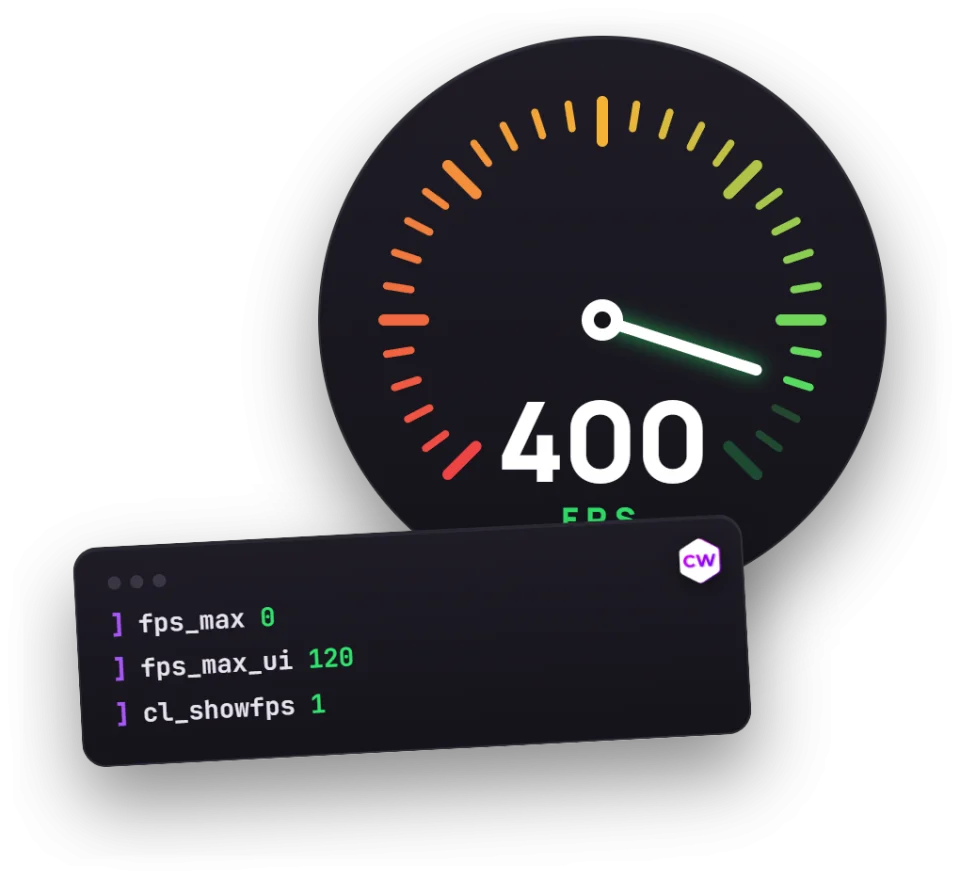
fps_max sets the frame rate cap. A value of 0 removes the limit, but it won't give you more FPS. Since August 14, 2025, you can't change it on the server, so set it before you connect. The mm_dedicated_search_maxping variable sets your preferred ping limit when searching for a match.
r_fullscreen_gamma only works in fullscreen mode. To see ping and FPS in the interface, use the CS2 HUD settings. For chat, choose whether to mute the enemy team or everyone except your friends and party.
Mouse Sensitivity and Voice Volume
sensitivity adjusts your regular mouse sensitivity, while zoom_sensitivity_ratio sets the sensitivity multiplier when scoped in. volume controls overall audio, and snd_voipvolume controls player voice volume.
- Mouse sensitivity
- Scoped sensitivity multiplier
- Horizontal turning multiplier
- Vertical turning multiplier
- Overall volume
- Player voice volume
- Voice chat
We wouldn't change m_yaw or m_pitch without a specific reason. They adjust horizontal and vertical turning separately, while sensitivity handles your regular mouse sensitivity. Our guide to CS2 pro players' sensitivity and DPI can help you find yours.
Connecting to a Server, Chat, and Quitting the Game
status shows connection details and players. To join a server, use connect followed by its address.
- connect <address> connects to a server.
- disconnect leaves the match.
- quit closes the game.
- callvote starts a vote.
- say "<text>" sends a message to all players.
- say_team "<text>" sends a message to your team only.
- player_ping places a marker where the player is looking.
Third-Person View in CS2 and Commands for Your Own Server
You can't enable third-person view in matchmaking. The thirdperson command is marked cheat. On your own server, enter sv_cheats 1, then thirdperson. Use firstperson to return to first-person view.
- Sets the camera distance
- Stops the camera from clipping through walls
- Lets you fly through walls
- Makes you invulnerable
- You take damage but don't die
- Kills your character
Use noclip, god, buddha, and kill on your own server with sv_cheats 1 enabled. These bot and practice commands can come in handy too.
CS:GO Commands That No Longer Work
Don't copy an old config wholesale and expect everything to work the same way. CS2 no longer has net_graph, voice_scale, mat_monitorgamma, or cl_righthand, but other settings can handle those functions. Replace those lines first, then check the rest with find.
| CS:GO command | What to use in CS2 |
|---|---|
| net_graph | cl_hud_telemetry_* interface counters and options for displaying FPS and ping |
| mat_monitorgamma | r_fullscreen_gamma |
| voice_scale | snd_voipvolume |
| cl_righthand | cl_prefer_lefthanded and switchhands |
| cl_clanid | The Clan Tag option in the player profile |
cl_hud_telemetry_* refers to a group of variables, not a single command to enter. Find them with find cl_hud_telemetry. The menu has options for “Show frame time and FPS” and “Show ping.” The interface counters also display packet loss.
- cl_bob and the other cl_bob* commands are gone.
- mat_queue_mode and cl_forcepreload have been removed.
- m_rawinput and m_customaccel are gone.
- cl_cmdrate and cl_updaterate are gone.
- cl_disablehtmlmotd, cl_showhelp, and cl_autowepswitch have been removed.
If a command has been removed from the game, don't try to fix it by changing its value. Search for the command name with find first. Otherwise, you'll just end up cycling through config lines that don't work.
How to Save Settings and Run a cfg
host_writeconfig saves your player settings. Use exec <file> to run a cfg you've prepared, or execifexists to run a file only if it exists. Our CS2 config guide covers where config files are stored, how to move them to another computer, and how to restore the default settings.
- Save player settings
- Run a cfg
- Run a file if it exists
- Create a custom command
- Bind a command to a key
- Show bound keys
- Find a command's keybind
- Restore default keybinds
Use bind to assign a command to a key, or alias to give your own command a separate name. See the keybind guide for syntax and assignment options. You can build a cfg with the autoexec builder, then check your changes with differences before saving.
Frequently Asked Questions
How to Open the Console in CS2
Turn on “Enable Developer Console” in the game settings, then press ~. You can also toggle the console with toggleconsole. The -console and -dev launch options enable it and override the menu setting.
How to Clear the CS2 Console
Enter clear to erase the console text. To save the output first, run condump. The text will be saved to a file named condumpXX.log.
How to Enable Third-Person View in CS2
On your own server, enter sv_cheats 1, then thirdperson. Use firstperson to return to the regular view. thirdperson doesn't work in matchmaking because it's cheat-protected.
Why doesn't net_graph work in CS2?
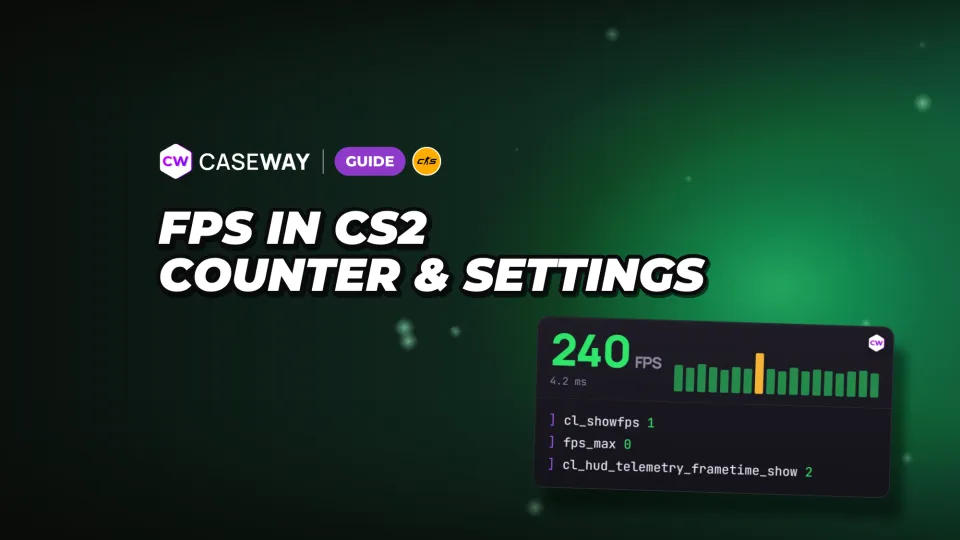
The old net_graph command isn't available in CS2. Use the cl_hud_telemetry_* interface counters and menu options to display FPS and ping instead. To show an FPS counter at the top of the screen, enter cl_showfps 1.
How to Find the Command You Need in the CS2 Console
Enter find <word> to search command names and descriptions. Then use help <command> to check a specific entry. cvarlist prints the full list, while differences shows variables with values that differ from their defaults.