
- Settings
- Two vcfg files in userdata\ID\730\local\cfg, where ID is your account number.
- Saving
- host_writeconfig saves your settings right away.
- Transfer
- Copy both files with Steam Cloud temporarily turned off for CS2.
- Autoexec
- Put autoexec.cfg in game\csgo\cfg and run exec autoexec.
- Keys
- binddefaults restores the default binds.
Where CS2 Stores Settings and Binds
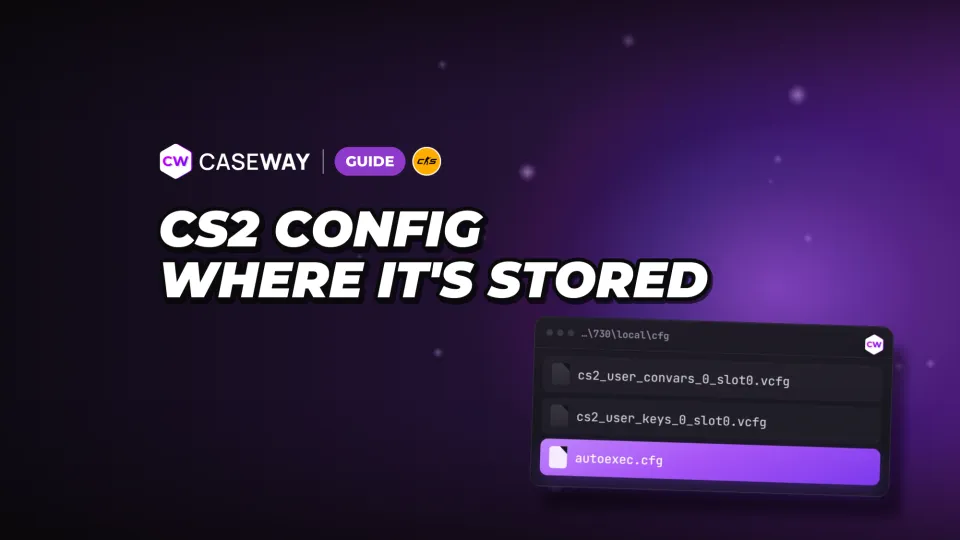
Your account settings are in Steam\userdata\ID\730\local\cfg. With Steam installed in its default Windows location, the path starts with C:\Program Files (x86)\Steam. The number 730 identifies CS2 on Steam. Replace ID with your account number.
| File | What it stores |
|---|---|
| cs2_user_convars_0_slot0.vcfg | Player settings and variable values |
| cs2_user_keys_0_slot0.vcfg | Keybinds |
How to Find Your userdata Folder
The folder number is the third part of your SteamID3. In [U:1:number], use the last number. You can find it with the Steam ID tool using your profile link. If you've signed into multiple accounts on the PC, userdata will contain several folders, so don't just pick the first one.
Where to Put Your Own CFG Files
Put your own configs in Steam\steamapps\common\Counter-Strike Global Offensive\game\csgo\cfg. This is a separate folder inside the game directory. The vcfg files in userdata store your account settings, while cfg files in the game directory contain commands you want to run.
- Bind
- A command assigned to a key.
- CFG
- A text file containing commands to run in the game.
- Steam Cloud
- Cloud syncing of settings files through Steam.
How to Save Your CS2 Config Before Reinstalling
The game saves your settings when you exit. To save changes right away, run host_writeconfig in the console. Before reinstalling or experimenting, back up both vcfg files separately. One stores your settings; the other stores your keybinds.
- In the game settings, enable “Enable Developer Console.” Press ~ to open the console.
- Enter host_writeconfig to save your current settings.
- Exit the game and open Steam\userdata\ID\730\local\cfg, replacing ID with your account number.
- Copy cs2_user_convars_0_slot0.vcfg and cs2_user_keys_0_slot0.vcfg somewhere safe.
Keep a backup outside CS2's working folders. If an experiment goes wrong, you won't have to remember your sensitivity and every keybind by hand.
host_writeconfig saves your current settings, while a backup keeps the previous version. If you overwrite your only backup with changed settings, you won't be able to restore the old ones.
How to Transfer Your CS2 Config to Another PC
You need both files from your account folder to transfer your settings. Temporarily turn off Steam Cloud for CS2 before copying them. Cloud sync may restore older versions and overwrite the settings you just transferred. Find the toggle in your Steam Library, under the game's Properties, in the General section.
- On your old PC, save your current settings with host_writeconfig and exit CS2.
- Copy cs2_user_convars_0_slot0.vcfg and cs2_user_keys_0_slot0.vcfg from your account folder.
- On the new PC, temporarily turn off Steam Cloud for CS2 in the game's Properties.
- Open Steam\userdata\ID\730\local\cfg, replacing ID with the number for the account you need. If the files are already there, back them up first.
- Put the transferred files in this folder, then launch CS2 and check your settings and keybinds.
The folder number stays the same for the same account. If you're moving settings to another account, use its ID, not the original account's number. If Steam is installed in a different location, the start of the path will change, but the account still determines the folder inside userdata.
Transfer your own autoexec separately by copying it to game\csgo\cfg in the new installation. Copying the two vcfg files brings over your saved settings and binds; your text config remains a separate file containing commands.
Video settings are stored separately in cs2_video.txt in the same folder. You can copy it along with the two vcfg files, but check your video settings on the other computer and adjust them if needed. They depend on your graphics card and monitor.
How to Make an Autoexec in CS2
An autoexec is a regular text file named autoexec.cfg in Steam\steamapps\common\Counter-Strike Global Offensive\game\csgo\cfg. It's a handy place for commands you want to run together. Put one command on each line and add host_writeconfig at the end.
- Create a plain text file named autoexec.cfg.
- Add the commands you need, one per line.
- Add host_writeconfig as the last line.
- Save the file in game\csgo\cfg.
- Open the CS2 console and run exec autoexec.
To run the file when the game starts, open CS2's Properties in Steam and enter +exec autoexec in the Launch Options field. In the console, use exec autoexec without the plus; in Launch Options, use +exec autoexec.
What to Put in Your Own File
We'd keep only commands you understand in your autoexec. That makes it easier to check the file if something changes after you run it. You can build one with the autoexec builder and prepare key commands with the bind generator.
How to Switch Between Practice and Match Configs
You can keep separate files for practice and matches in game\csgo\cfg. The exec command runs the specified cfg, so you don't have to enter the whole set of commands by hand every time. When you run it, use the filename without the extension.
| Command | What it does |
|---|---|
| exec name | Runs name.cfg from game\csgo\cfg |
| execifexists name | Runs the file if it exists and doesn't return an error if it doesn't |
Replace name with your file's name. For autoexec.cfg, use exec autoexec. For an optional config, use execifexists with the same name. The command won't return an error if the file is missing.
How to Reset CS2 Settings and Restore Default Keys
First decide whether you want to restore one key, all binds, or the settings in your account files. There are separate commands for keybinds. Use differences to see which settings you've changed, and key_listboundkeys to check your binds.
The easiest way to reset settings is in-game. The settings menu has buttons for “Reset Keyboard and Mouse Settings,” “Reset Game Settings,” and “Reset Audio Settings.” The Video section has a “Reset” button. The game will ask you to confirm. Use the console and rename files when you want to reset everything at once or keep the option to restore your old settings.
- Unbinds the specified key
- Unbinds all keys
- Restores the default binds for all keys
- Lists keys that have binds
- Shows which key is bound to the specified command
- Shows variables with values that differ from their defaults
unbindall doesn't restore the default controls; it clears every bind. Movement and shooting won't work until you set your binds again. Use binddefaults to restore the default keys.
How to Reset Files and Keep a Way to Restore Your Settings
Exit CS2 and temporarily turn off Steam Cloud for the game before resetting your settings. In Steam\userdata\ID\730\local\cfg, where ID is your account number, rename cs2_user_convars_0_slot0.vcfg and cs2_user_keys_0_slot0.vcfg. Keep their original names somewhere safe. Then launch the game and check the result.
Don't delete the entire cfg folder. Renaming it keeps the old files available in case you want to restore them. To do that, exit the game and give the files their original names again. Also check your autoexec and the +exec autoexec launch option if you use them. Running the file applies the commands it contains again.
Frequently Asked Questions
Where Is the CS2 Config Folder?
Settings and binds are stored in Steam\userdata\ID\730\local\cfg, in cs2_user_convars_0_slot0.vcfg and cs2_user_keys_0_slot0.vcfg. ID is the last number in a SteamID3 formatted as [U:1:number]. Put your own cfg files in Steam\steamapps\common\Counter-Strike Global Offensive\game\csgo\cfg.
How to Transfer Your CS2 Settings to Another PC
Save your settings with host_writeconfig, then copy both vcfg files from your account folder. On the new PC, temporarily turn off Steam Cloud for CS2, put the files in the folder for the right ID, and launch the game. If you're using a different account, get the folder number from its SteamID3.
How to Make an Autoexec in CS2
Create a text file named autoexec.cfg in game\csgo\cfg and put one command on each line. Add host_writeconfig at the end, then run exec autoexec in the console. To run it when the game starts, add +exec autoexec to CS2's launch options in Steam.
How Do I Reset All Binds in CS2?
unbindall clears every bind, including movement and shooting. To restore the default keys, run binddefaults. Use key_listboundkeys to see your current binds.
Why Do My CS2 Settings Keep Resetting?
Steam Cloud may restore older versions of your files after you copy them, so turn off cloud sync for CS2 while transferring your settings. If you use your own autoexec, check the commands in it: the file applies the settings it contains. Save your current changes with host_writeconfig before copying anything.