
- Old codes
- The game no longer accepts CSGO- codes.
- New format
- The code starts with CS, followed by 44 characters.
- Sizes
- Length, thickness, and gap are measured in pixels.
- Conversion
- The Caseway generator reads old codes and outputs new ones.
What Changed in the Crosshair Settings
The September 22, 2026 update changed the sizing system: the crosshair became resolution-independent, and its settings moved to the Crosshair/Scopes tab. New styles were added. By default, the game uses Dynamic Quadrant, which better shows weapon accuracy.
The September 30 update added Static Quadrant, outline color selection, and a negative gap for Dynamic Cross (Classic). The scope dot’s size and color were added to the crosshair code, and the code format was changed to accommodate the new settings. These changes are described in Valve’s updates.
The display of weapon inaccuracy and spread was also fixed. The grenade crosshair is now visible during the freeze time before a round: to throw instant smokes, just hold any attack button while holding a grenade.
Why an Old Crosshair Code Doesn’t Work
Since September 30, the game has accepted only the new format. If you paste an old code, CS2 returns: “Invalid or outdated crosshair code.” Caseway’s testing found that neither codes from before September 22 nor codes issued between the September 22 and 30 updates are accepted. Valve hasn’t separately announced that old codes were disabled; this is based on the game’s response.
| Format | Example | Accepted by the game |
|---|---|---|
| Old | CSGO-xxxxx-xxxxx-xxxxx-xxxxx-xxxxx | No, including codes from between the two updates |
| New | CS followed by 44 characters | Yes |
Example of a new CS2 crosshair code for the game’s default settings: CSpb9t3x5NtrX5fWaENsr8vusEtwpiURjzqauLkOiYHMqF. Simply replacing CSGO- with CS isn’t enough; the settings need to be converted.
How to Convert an Old CS2 Crosshair to the New Format
The Caseway crosshair generator reads all three code generations: the new CS… format, CSGO-… codes from September 22 to 30, and CSGO-… codes from before September 22. Here’s how to convert a code:
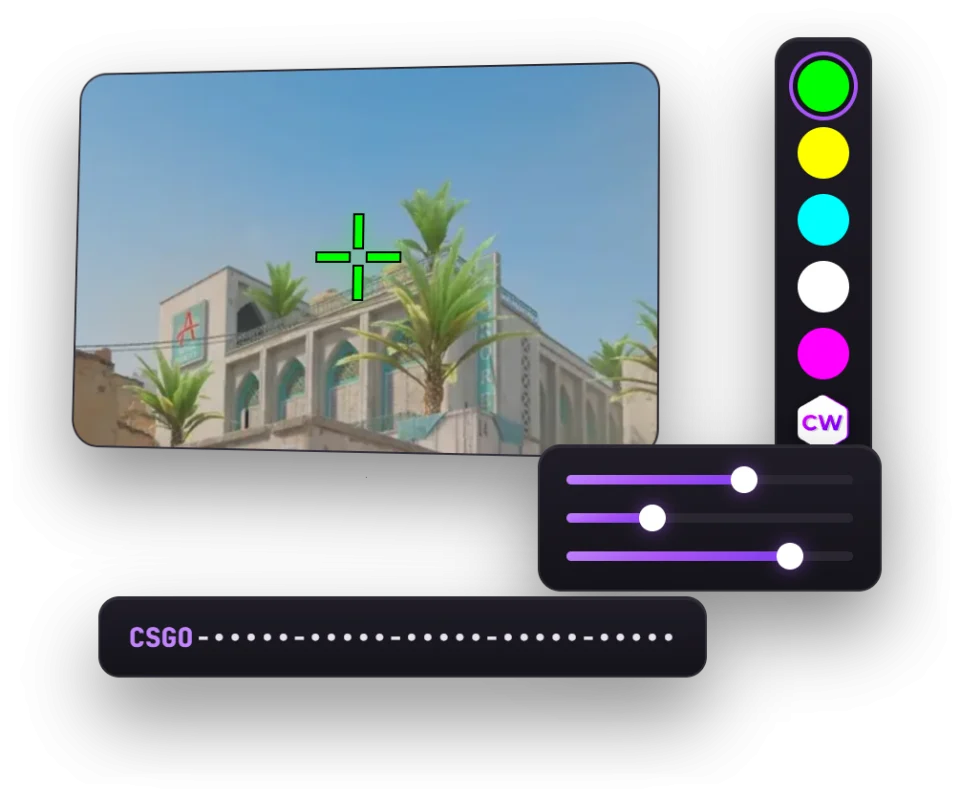
- Paste the old codeIn the generator, in the “Paste a CS… or CSGO-… code” field.
- Check the screen heightFor a code from before September 22, enter the screen height you used with that crosshair. The generator defaults to 1080.
- Copy the new codeAlternatively, use console commands, which you can enter in the game on one line.
- Import the code in-gameThe Crosshair tab in settings, then the Share or Import window.
Codes from the September 22 and September 30 updates carry over all saved settings. The outline will be black, and the scope dot will use its default setting; the old code didn’t include those options. For codes from before September 22, the generator converts length and thickness to pixels using the old scale: 1 unit equaled 1/480 of the screen height.
When converting a code from before September 22, first check the screen height in the generator. Otherwise, the length and thickness will be recalculated for the default height of 1080 instead of your previous resolution.
Crosshair Styles: Numbers and Behavior
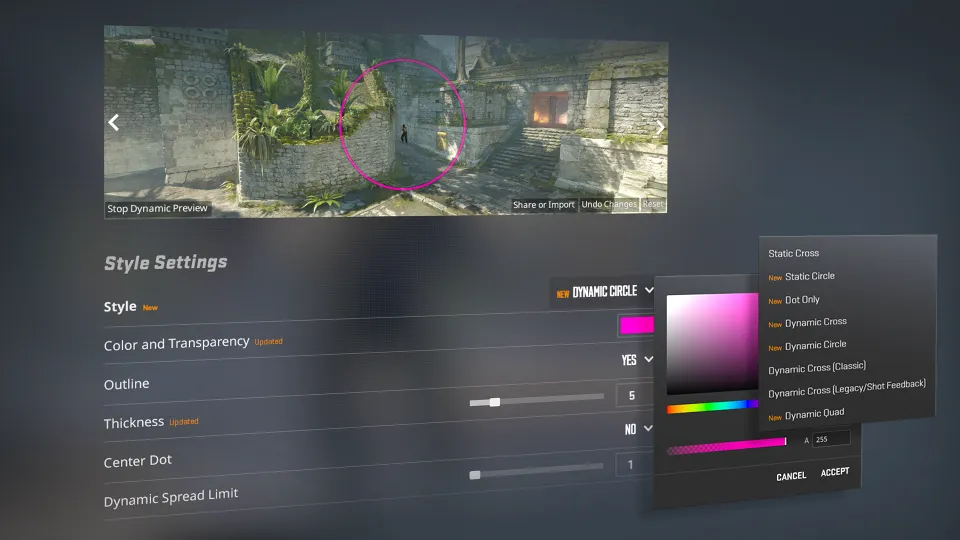
Choose a style in the settings or with the cl_crosshairstyle command. Dynamic styles expand while moving and shooting; static styles keep their shape. The table lists all ten options and their numbers, with the English names alongside the in-game names.
| Number | In-game name | English name | Changes while moving and shooting |
|---|---|---|---|
| 0 | Dynamic Cross | Dynamic Cross | Yes |
| 1 | Dynamic Circle | Dynamic Circle | Yes |
| 2 | Dynamic Cross(Classic) | Dynamic Cross(Classic) | Yes |
| 3 | Static Circle | Static Circle | No |
| 4 | Static Cross | Static Cross | No |
| 5 | Dynamic Cross(Legacy/Shot Feedback) | Dynamic Cross(Legacy/Shot Feedback) | Yes |
| 6 | Dot Only | Dot Only | No |
| 7 | Dynamic Quadrant | Dynamic Quadrant | Yes |
| 8 | Static Square | Static Square | No |
| 9 | Static Quadrant | Static Quadrant | No |
Style 9 doesn’t have an in-game name in Russian yet; the menu displays it in English.
The new dynamic styles show your weapon’s actual spread and inaccuracy. Dynamic Spread Limit controls how far the crosshair spreads at maximum inaccuracy. In a note dated September 23, Valve said the minimum dynamic spread was reduced to 64 pixels.
Static Quadrant has a separate Quadrant Size setting. It changes the size of the quadrants but doesn’t make the crosshair dynamic. Don’t confuse this style with Static Square: they’re different options, numbered 9 and 8.
CS2 Crosshair in Pixels: Length, Thickness, and Gap
Previously, size values used an arbitrary scale and were converted to pixels based on the resolution. Now, length, thickness, and gap are measured in screen pixels. Valve’s example: a thickness of 1 pixel, line length of 8 pixels, and gap of 4 pixels correspond to thickness = 1, length = 8, and gap = 4.
When you change resolution, the game recalculates the size while preserving proportions. A crosshair with a thickness of 2 pixels at 1280x720 will have a thickness of 4 pixels at 2560x1440. So being resolution-independent doesn’t mean the actual pixel count always stays the same.
Half Outline and Its Color
A half outline is drawn only above and to the left of the crosshair lines. It was added in the September 23 update, and the September 30 update added outline color selection. You can set the outline’s red, green, and blue values separately in the console, along with its opacity.
Zero and negative gap
The bug that prevented a zero gap was fixed on September 23. A negative gap is available for Dynamic Cross (Classic), style 2: the minimum in the menu is −10. The September 30 update also changed the opacity increment for this style to 0.01.
Don’t use a negative gap with just any style: it’s available specifically for Dynamic Cross (Classic), style 2.
Console Commands for the New Settings
Enter commands in the in-game console. For example, cl_crosshairstyle 9 selects Static Quadrant, and cl_crosshair_length 8 sets the line length to 8 pixels. The new and changed parameters, with their limits from the game files, are listed below.
The old commands cl_crosshairsize, cl_crosshairthickness, and cl_crosshairgap have been replaced by cl_crosshair_length, cl_crosshair_thickness, and cl_crosshair_gap. Use cl_crosshaircolor_a to set transparency. If your autoexec still has the old commands, replace them. The old values used an arbitrary scale, while the new ones are in pixels.
- Crosshair style
- Line length
- Line thickness
- Gap
- Outline mode
- Red outline component
- Green outline component
- Blue outline component
- Outline opacity
- Static Quadrant size
- Scope dot size for the AUG and SG 553
- Use the crosshair color for the scope dot
- Screen height the crosshair was made for
How to Import Someone Else’s Code and Share Your Own
Importing a code and copying your own are both done from the same settings window. To import a code, you need the new format starting with CS; first, run an old code through the generator.
- Open the Crosshair tabIn the game settings.
- Click “Share or Import Crosshair Code”The Share or Import window will open.
- Share your codeIt’s in the Crosshair Code field.
- Or paste someone else’s codePaste the code and click Import.
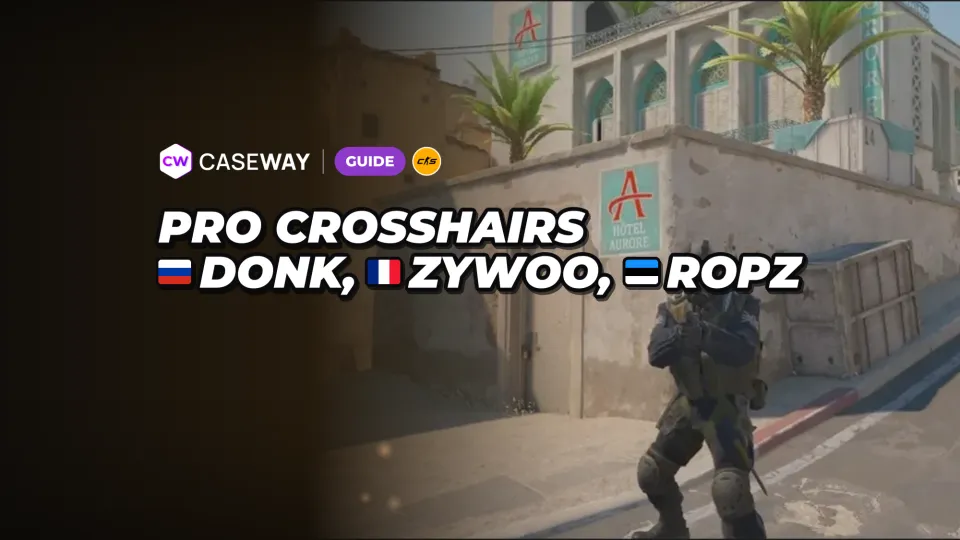
There’s also a Copy Crosshair feature, which copies the crosshair of the player you’re spectating. If you want a saved pro player’s code, the codes in Caseway’s Pro Settings are already in the new format.
Frequently Asked Questions
Why does CS2 say “Invalid or outdated crosshair code”?
That’s the game’s response to an unsupported code. The old CSGO- format is no longer accepted, including codes from between the September 22 and 30 updates. Convert the old code first, then import the result.
How do you convert an old crosshair code to the new format?
Paste it into the Caseway crosshair generator and copy the new code. For a code from before September 22, select the screen height you used with that crosshair so the generator can recalculate its size. Codes from between the two September updates convert without losing saved settings.
What is Static Quadrant in CS2?
This is Static Quadrant, style 9 in the cl_crosshairstyle command. It doesn’t expand while moving or shooting. Quadrant Size controls the size of the quadrants.
Why does my crosshair look different after a CS2 update?
The sizing system changed: crosshair sizes now use pixels instead of an arbitrary scale. Dynamic Quadrant is now the default, and the new dynamic styles show the weapon’s actual spread and inaccuracy. When converting an old code, check the screen height used for the conversion.
Can you set a negative crosshair gap in CS2?
Yes, for Dynamic Cross (Classic), style 2. The in-game menu lets you set its gap as low as −10. This isn’t listed as an option for the other styles.