
What crosshairs do pro players use?
The Caseway Pro Players section lists 374 players and their crosshair codes, based on data from Liquipedia. Below is a breakdown of their settings. It shows which options are most common, but doesn’t prove that a popular crosshair will work better for you.
| Setting | Option | Players |
|---|---|---|
| Style | Static crosshair | 353 |
| Style | Static crosshair with firing feedback | 20 |
| Style | Dynamic crosshair | 1 |
| Shape | T-shaped crosshair | 0 |
| Center dot | On | 62 |
| Outline | On | 50 |
Static crosshairs are by far the most common choice. Center dots and outlines are less common than crosshairs without them. In our view, that’s a useful starting point: try a standard crosshair first, then decide whether you need extra elements. You don’t have to copy every setting just because it’s popular.
You can get a pro’s crosshair from their profile instead of building one from general settings. The summary shows which choices are common, but it can’t replace an individual player’s settings: the median size, most popular color, and most common style don’t necessarily appear together in one crosshair.
Why almost everyone uses a static crosshair
A static crosshair doesn’t change when you move or shoot. A dynamic crosshair expands to show your current spread. The Caseway crosshair generator describes the difference: one keeps its shape, while the other visually responds to what’s happening.
In our view, a static crosshair gives you a consistent reference point: its lines don’t move or distract you by changing shape. That choice makes sense alongside the data, where 353 players use a static crosshair. But the breakdown doesn’t explain why any individual pro made that choice.
If you want your crosshair to show your current spread, a dynamic crosshair is worth considering for that feature. If the moving lines make it harder to focus on the center, start with a static one. A static crosshair with firing feedback is a separate option in the summary and shouldn’t be confused with a standard static crosshair.
Crosshair color: green, cyan, yellow, or white
Green is the most common color in the dataset, followed by cyan. Yellow and white are also used by dozens of players. Here’s the full breakdown across the same 374 profiles:
| Color | Players |
|---|---|
| Green | 135 |
| Cyan | 107 |
| Yellow | 49 |
| White | 42 |
| Red | 4 |
| Pink | 1 |
| Other shades | 36 |
When choosing a CS2 crosshair, test its color against the maps you play. The main question is whether you can easily spot the center of the crosshair across different parts of a map. Green and cyan are popular options worth trying, but that’s no reason to stick with a color you find hard to see.
In our view, it’s best to test color separately from shape: keep the size and gap the same, then compare a few colors. That makes it easier to tell what changed how the crosshair looks to you. You can test the outline next; 50 players use one, but that doesn’t make it a must-have setting.
Size, gap, and thickness: pixel benchmarks
The median settings among pro players are a line length of 3 pixels, a gap of 2 pixels, and a thickness of 1 pixel. These are benchmarks from the dataset, not the settings of any particular pro. The median is the midpoint of a set of values; it doesn’t mean all players use these settings.
| Setting | Median value |
|---|---|
| Line length | 3 pixels |
| Gap | 2 pixels |
| Thickness | 1 pixel |
Keep in mind that the Rush Hour update went live on September 22, 2026. Valve reworked crosshairs: line length, thickness, and gap are now set in pixels, and the commands and code format have changed. In this summary, pre-update codes have been converted for a screen height of 1080 pixels.
What else changed in the update? The new default crosshair is Dynamic Quad, which shows your weapon’s actual spread. There are now 9 styles, with Static Quadrant added as the 10th on September 30. You can choose a half outline, which draws only the top-left section, and set the outline color separately. Scope dot settings have been part of the code since September 30. Static styles don’t spread when you shoot, while dynamic styles show your weapon’s actual inaccuracy.
That’s why old numeric settings can’t be compared directly with this table. To transfer an old code, the Caseway generator converts it using the game’s previous rules and your selected screen height, then gives you a new code.
When converting an old code, select your screen height in the generator. The summary uses values for a height of 1080 pixels—don’t use that setting automatically if your screen is a different height.
Median values are a good starting point if you don’t have a favorite player or a code ready to use. Then change one setting at a time: start with line length, then adjust the gap or thickness. This makes it easier to compare individual changes instead of choosing between two completely different crosshairs.
How to use a pro player’s crosshair in CS2
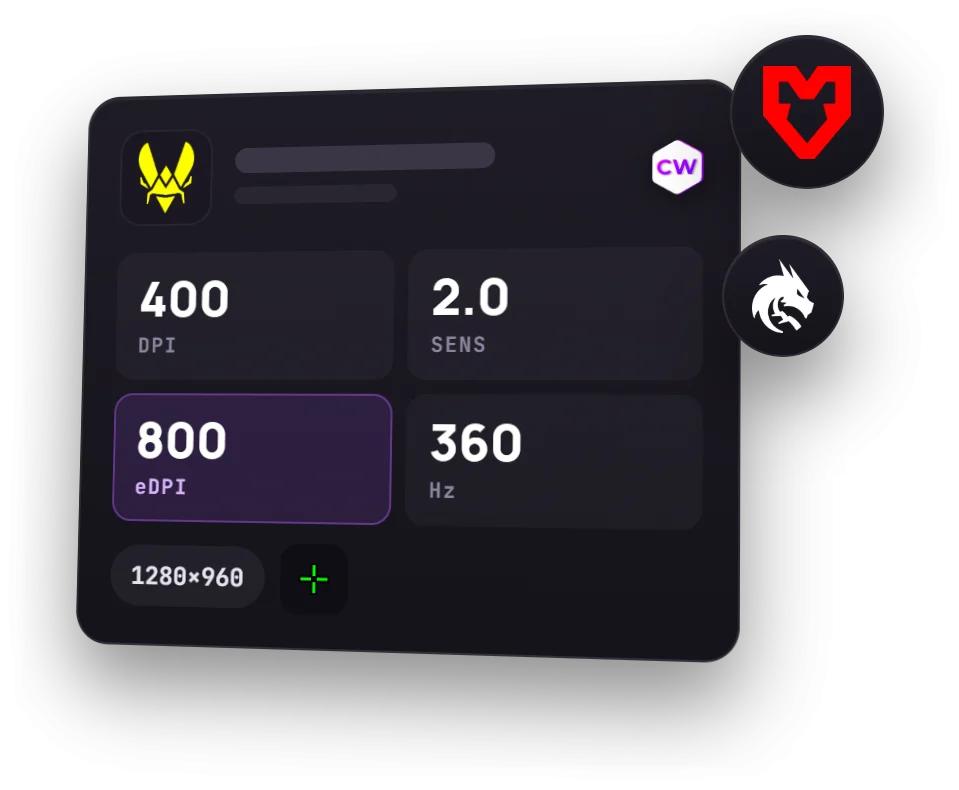
Pro crosshair codes are available in Caseway player profiles. For example, donk’s Team Spirit crosshair is in his profile, along with a code you can copy. To create your own crosshair or convert an old code, use the generator.
Importing a code through the game settings
- Open the player’s profile or the generator and copy the crosshair code.
- In CS2, open Settings and go to the Crosshair tab.
- Select Share or Import and paste the code you copied.
This lets you transfer a crosshair using a code instead of entering each setting manually. To use a specific player’s crosshair, get the code from their profile: the table of median values won’t reproduce their exact settings.
Using the console
The second method is to paste the entire command string into the console and press Enter. This uses a command string, not a code for the import window. Don’t confuse the two: paste a code under Share or Import, and enter commands in the console.
What to do with an old code
If a code was created before September 30, 2026, the game usually won’t accept it. The format changed twice: on September 22, when the new crosshair system arrived, and on September 30, when scope dot settings were added to the code. Open the crosshair generator, convert your old code for your screen height, and get a new one. Open the crosshair generator, convert your old code for your chosen screen height, and get a new one. Then import it through the game settings.
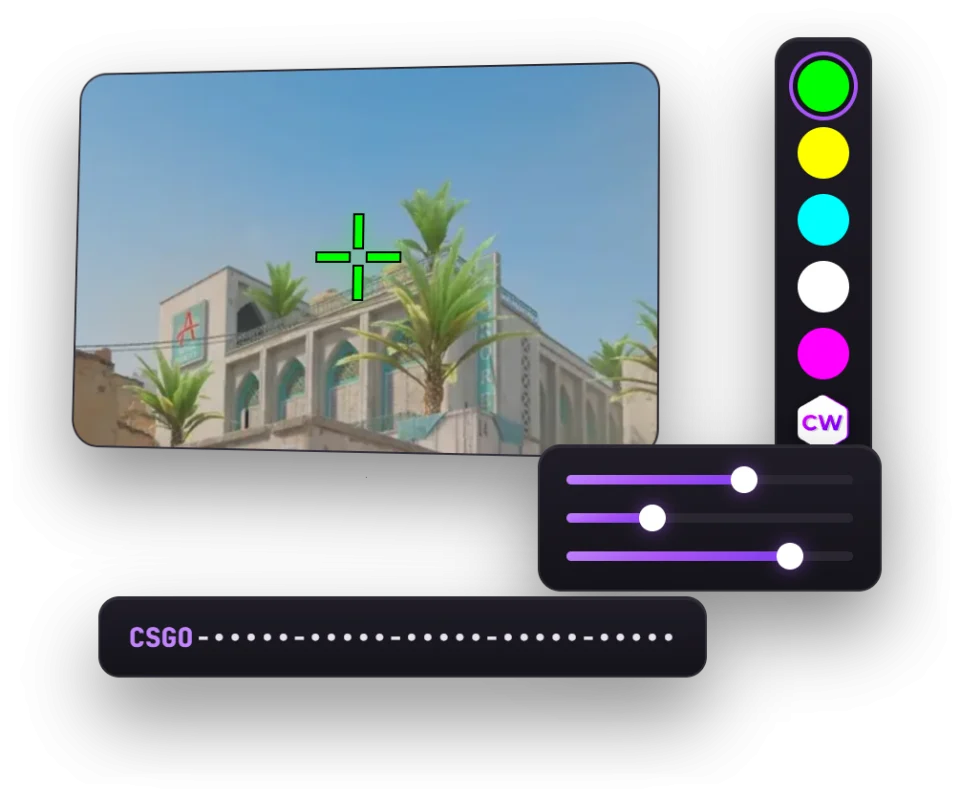
Don’t try to import an old code again without converting it first. The code format changed twice, on September 22 and September 30. You’ll need a new code to restore your old crosshair.
Frequently asked questions
What’s the best crosshair for CS2?
There’s no way to identify one universally best CS2 crosshair from the settings breakdown. Among 374 pro players, the most common choice is a static crosshair. The median settings are 3 pixels for line length, 2 for gap, and 1 for thickness. In our view, that’s a reasonable starting point; after that, choose a color and shape that work for you.
What crosshair does donk use?
donk’s Team Spirit crosshair is available in his Caseway profile. You’ll find a code there that you can copy and import into CS2 through the crosshair settings.
How do you import a crosshair code in CS2?
Open Settings, go to the Crosshair tab, and select Share or Import. Then paste the code. If you’re using a command string, paste the whole string into the console and press Enter. An import code and a command string are two different ways to transfer settings.
Why doesn’t my old crosshair code work?
The September 22, 2026 Rush Hour update changed the commands and code format. The format changed again on September 30, so the game usually won’t accept old codes. The Caseway Generator recalculates an old code using the previous rules for your selected screen height and gives you a new one to import through the crosshair settings.