
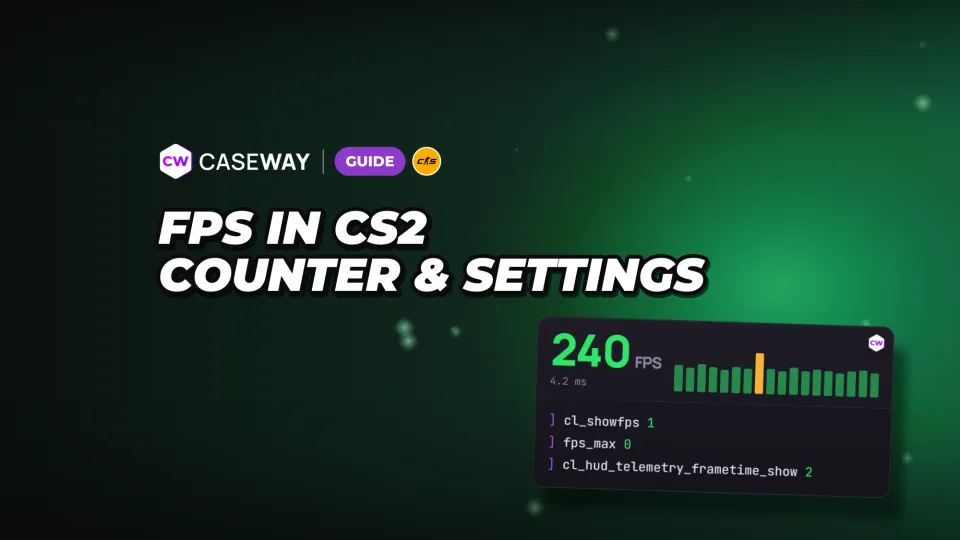
To see FPS in CS2, enter cl_showfps 1 in the console. To see frame time as well, turn on telemetry in the game settings. Then change one graphics setting at a time and check the result. This makes it easier to find what’s taxing your PC.
- Counter
- cl_showfps 1
- No cap
- fps_max 0
- Visibility
- Boost Player Contrast on, shadows at medium or higher
- Save settings
- Commands in autoexec.cfg
How to Show FPS in CS2
First, open game settings, go to the Game tab, and set Enable Developer Console to Yes. After that, press the ~ key to the left of 1 to open the console. You only need to enable this once.
FPS Counter: Console and Telemetry
The cl_showfps 1 command displays your frame rate at the top of the screen. It has 3 other modes: 2 shows smoothed FPS, 3 shows server frame time in milliseconds, and 4 shows FPS and logs it to a file. Turn off the counter with cl_showfps 0.
In the Telemetry section, set Show frame time and FPS to Always. This displays your average frame rate and the worst recent frame times in milliseconds. If Conditions Are Poor shows the stats only when there are problems, while Never hides them.
- Shows FPS at the top of the screen.
- Always shows average FPS and the worst recent frame times.
You can use these two indicators separately. To hide frame time telemetry, enter cl_hud_telemetry_frametime_show 0. On the FPS commands page, you can copy the counter and ready-made settings in a single line.
Steam’s FPS Counter, No Console Needed
Open Steam, then go to Settings, In Game, and In-game FPS counter. Choose which corner of the screen to show it in. This works in any Steam game. To turn the counter off, use the same setting.
What FPS Should You Aim for on Your Monitor?
A good performance target is an FPS at least as high as your monitor’s refresh rate. For a 144 Hz display, aim for 144 FPS or higher; for 240 Hz, aim for 240 or higher. We’d focus on consistency first: a steady 200 FPS is better than swings between 150 and 300.
Don’t choose settings based on the highest number you see on the counter. Watch for drops and check frame times in telemetry. Average FPS and the worst recent frame times show different aspects of game performance.
Commands for FPS, Frame Rate Limits, and Network Stats
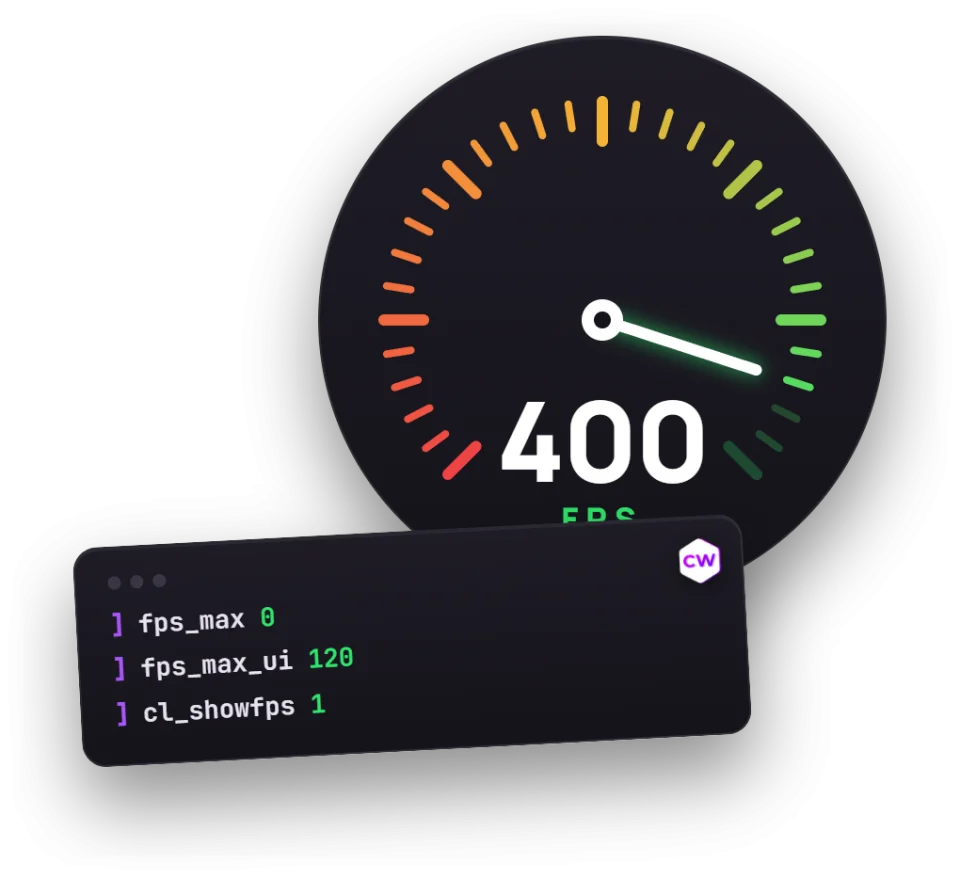
Use fps_max to cap FPS during a match and fps_max_ui to cap it in the menu. Set either command to 0 to remove its cap. You can also adjust these options in the game settings: Max FPS In-Game and Max FPS In Menus.
- Sets the maximum frame rate during a match. Replace the value with your preferred cap.
- Sets the maximum frame rate while the game menu is open.
- Always shows ping.
- Always shows the share of player commands and server updates lost due to network issues.
A menu cap keeps your graphics card from working for nothing between matches. If you use a G-Sync or FreeSync monitor, we recommend setting the cap 3 FPS below the monitor’s refresh rate. For example, use fps_max 141 for 144 Hz.
Why Old Network Commands Don’t Work
The net_graph command is still in CS:GO, while cq_netgraph was removed from CS2. The game also doesn’t have the cl_updaterate or cl_cmdrate commands. Use separate telemetry indicators for FPS, ping, and packet loss.
cl_interp_ratio is in the game, but you can’t change it directly. It’s controlled by cl_net_buffer_ticks, which sets the number of ticks to delay server snapshots and player commands. The default is 0 for the lowest latency; values of 1 or 2 are intended for unstable connections.
CS2 Graphics Settings: What Puts a Strain on Your PC
Start with settings that affect effects and image quality. Below are the names of the options in the English game menu and what they do. Lower quality isn’t always the best choice for a match: shadows and player contrast can help you spot opponents.
| Setting | What it does |
|---|---|
| Shader Detail | Affects the quality of lighting and shadows on surfaces. A high setting can hurt performance. |
| Particle Detail | Sets the detail level of particle effects and whether they cast shadows. |
| Global Shadow Quality | Sets the accuracy of dynamic shadows. Higher settings can put more load on your CPU and graphics card. |
| Dynamic Shadows | Sets which light sources cast shadows from players and smoke. Sun Only can improve performance. |
| Multisampling Anti-Aliasing Mode | Smooths jagged edges. Higher anti-aliasing settings reduce performance. |
| Texture Filtering Mode | Improves the look of textures. May reduce performance. |
| Ambient Occlusion | Can reduce performance. |
| Boost Player Contrast | Makes players easier to see when contrast is low. May reduce performance. |
| FidelityFX Super Resolution | Renders at a lower resolution and upscales the image. May improve performance. |
| Vertical Sync | Matches the frame rate to the screen’s refresh rate and removes screen tearing. |
| NVIDIA Reflex Low Latency | Low-latency setting in the video menu, including the On + Boost option. |
| AMD Anti-Lag 2.0 | Reduces system latency. |
How to Boost FPS in CS2 Without Losing Visibility
If your FPS is low, use this as a starting point. Keep overall shadow quality at medium or higher: shadows can reveal an opponent around a corner. Keep Boost Player Contrast on too.
- Set model and texture, shader, and particle detail to Low.
- Choose bilinear filtering and turn off ambient occlusion.
- Turn off anti-aliasing. If you have FPS to spare, try 2x MSAA; use 4x only if you have plenty of headroom.
- Set Dynamic Shadows to Sun Only.
- Turn off vertical sync, which adds input lag.
- Keep FidelityFX Super Resolution off to avoid a blurry image.
- Turn on NVIDIA Reflex in the video settings.
You can change NVIDIA Reflex and AMD Anti-Lag 2 in the video menu, not the console. The r_low_latency variable is locked to players. Compare your options with our FPS settings overview and pro player settings.
Change one setting at a time and watch the counter. Results vary between graphics cards, and after several changes at once, it’s hard to tell which one helped.
If Your FPS Drops: What to Check Outside the Game
If lowering graphics settings doesn’t fix the problem, check your power settings, background apps, and PC health. If FPS drops start after 10–20 minutes of play, check your temperatures too.
- Check for graphics driver updates from NVIDIA or AMD. New versions also support CS2 updates. If performance gets worse after an update, try a clean driver install.
- Set your Windows power plan to High performance. Plug in your laptop, since the CPU and graphics card run slower on battery.
- On a laptop, open Settings, System, Display, then Graphics, and set cs2.exe to High performance. Otherwise, the game may use the integrated graphics card.
- Close your browser, screen recording software, and unnecessary overlays. In Settings, Gaming, turn off Xbox Game Bar and background recording if you don’t use them.
- If FPS drops after 10–20 minutes of play, check your temperatures and clean dust out of your PC.
- Check whether the game is installed on an SSD. Maps and models load more slowly from a hard drive, which can cause stutters at the start of a round.
- If stuttering started after an update, open CS2’s Properties in Steam, go to Installed Files, and verify the integrity of the game files.
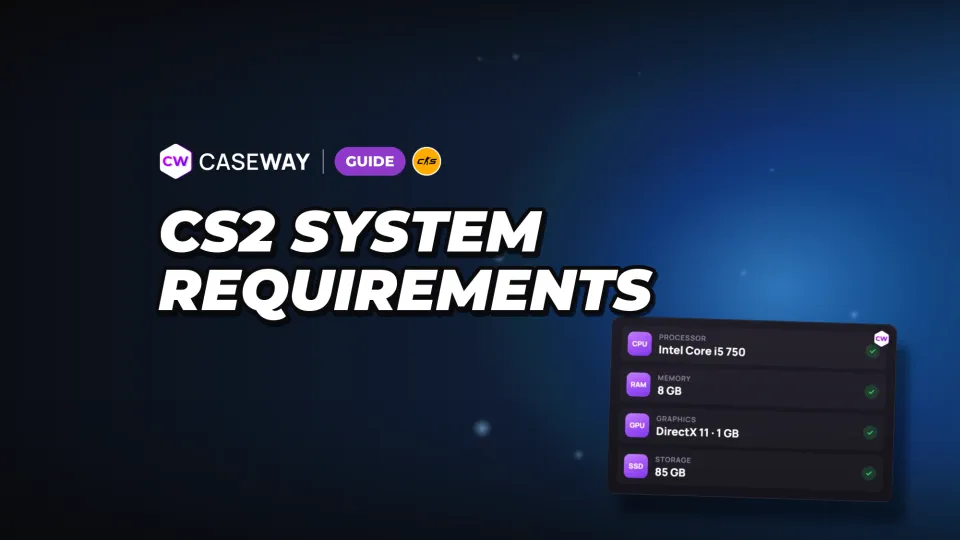
Compare your PC with the CS2 system requirements too. The counter shows your frame rate, while ping and packet loss telemetry can help you check your connection separately.
How to Save Commands in autoexec.cfg
If your commands aren’t in autoexec.cfg, you’ll need to enter them again after restarting the game. The game runs this file on startup, so it’s a handy place to save your preferred counter and frame rate limit.
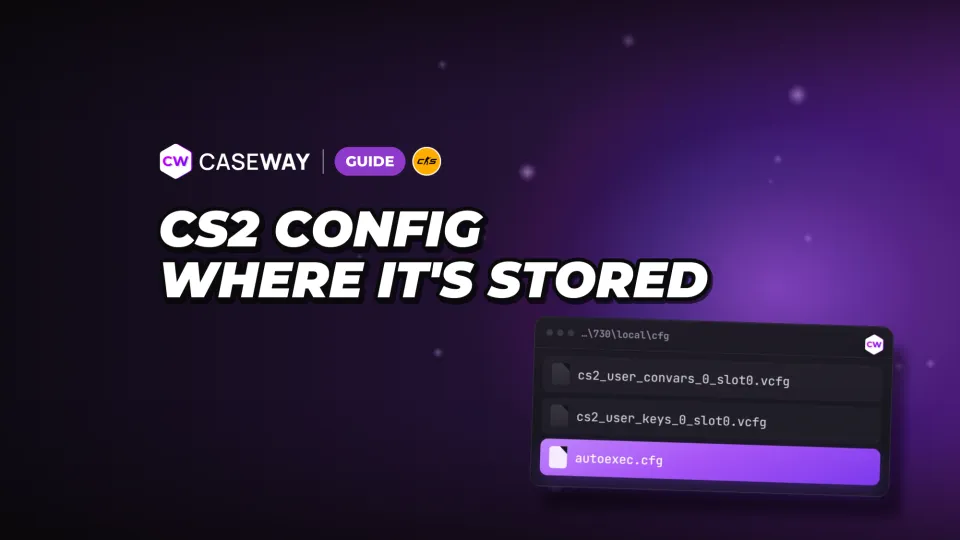
Select the options you want in the autoexec builder, and it’ll generate the file for you. Our CS2 config guide shows where to put it.
Frequently Asked Questions
How Do You Show FPS in CS2?
Enable the developer console in the Game tab, open it with the ~ key, and enter cl_showfps 1. Without the console, you can set Show frame time and FPS to Always in the telemetry settings or enable the counter in Steam settings.
Which Command Shows FPS in CS2?
cl_showfps 1 displays FPS at the top of the screen. The cl_hud_telemetry_frametime_show 2 command shows your average frame rate and the worst recent frame times.
How Do You Remove the FPS Cap in CS2?
Enter fps_max 0 to remove the cap during a match. The menu has its own command: fps_max_ui 0. You can keep the menu cap on to avoid making your graphics card work for nothing.
Why Doesn’t net_graph Work in CS2?
That command is still in CS:GO, but it’s not in CS2. Use the FPS counter and telemetry for frame time, ping, and packet loss instead. The cq_netgraph command was also removed from CS2.
Which Graphics Settings Boost FPS in CS2?
Start by lowering shader and particle detail, turning off anti-aliasing and ambient occlusion, and using bilinear filtering. Keep overall shadow quality at medium or higher, and turn on Boost Player Contrast to spot opponents. Check the results after each change.