
- Color
- 13 options with cl_hud_color
- Size
- hud_scaling from 0.9 to 1.1
- Radar
- Lower cl_radar_scale shows more of the map
- Hide
- cl_draw_only_deathnotices 1 keeps your crosshair and kill feed visible
Where to Find the Interface Settings and How to Open the Console
Open the game settings and go to “Interface.” There you can change the HUD color and size, background opacity, and health and ammo style. Radar options and FPS counters are also available in the menu. Use the console to adjust the screen’s safe zone or hide the interface.
- In the game settings, find “Enable Developer Console” and turn it on.
- Press ~ to open the console.
- Enter the variable name, a space, and a value. For example, cl_hud_color 9 sets the HUD to green.
Use a period for decimal values in commands, as in hud_scaling 0.9. The game saves your color, size, radar, and safe-zone settings to your player config. cl_showfps and recording commands reset to their default values when you restart the game.
CS2 HUD Color and Element Size
The “HUD Color” setting changes parts of the interface, including health, armor, and ammo. You can set the same option with cl_hud_color in the console. The default is 0, which uses your team color.
| cl_hud_color value | HUD color |
|---|---|
| 0 | Team color |
| 1 | White |
| 2 | Pure white |
| 3 | Light blue |
| 4 | Blue |
| 5 | Purple |
| 6 | Red |
| 7 | Orange |
| 8 | Yellow |
| 9 | Green |
| 10 | Aquamarine |
| 11 | Pink |
| 12 | Teammate color |
How to Make the CS2 HUD Smaller
“In-Game HUD Size” and hud_scaling control the size of all HUD elements. The default is 1, and the valid range is 0.9 to 1.1. Enter hud_scaling 0.9 to make the HUD smaller, or hud_scaling 1 to restore its default size.
Other menu options let you change the HUD’s appearance without changing its scale. “HUD Background Opacity” controls the backgrounds behind your money, health, location, and ammo.
- “Health and Ammo Style” has 2 options: “Default” and “Simple.”
- “Bomb Indicator Position” lets you choose between “Show in Inventory” and “Show Below Radar.”
What to Do If the Interface Goes Beyond the Screen Edge
If the HUD sits too close to the edges, move it inward with safezonex and safezoney. These set the fraction of the screen’s width and height used to draw the interface. Values below 1 pull it toward the center. This helps on TVs where the image is cropped at the edges, or on ultrawide monitors where the panels sit far from the center of your view.
| Variable | What it controls | Default | Range |
|---|---|---|---|
| safezonex | Fraction of screen width | 1 | From 0 to 1; width cannot be less than height |
| safezoney | Fraction of screen height | 1 | From 0.8 to 1 |
Adjust one axis at a time and check where the HUD ends up. safezonex and safezoney move the interface away from the edges, while hud_scaling changes the size of its elements. To restore the full screen area, set safezonex 1 and safezoney 1.
How to Set Up the CS2 Radar to See More of the Map
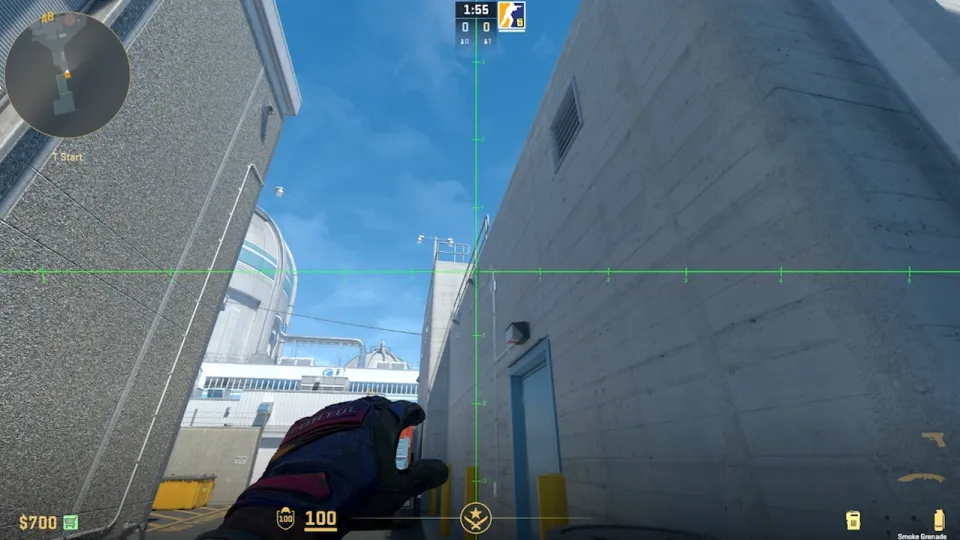
“Radar Size” and “Radar Zoom” do different things. cl_hud_radar_scale changes the radar’s size on screen, while cl_radar_scale changes how much of the map it shows. Lower zoom displays more of the map.
- Radar size
- Radar zoom
- Alternative radar scale
- Rotate radar
- Center radar on player
- Dynamic radar scaling
- Square radar in the scoreboard
For a wider view, start with cl_radar_scale 0.25 and cl_radar_always_centered 0. This zooms the map out and lets the radar use its full area instead of keeping your player centered.
If you prefer to keep yourself centered, leave cl_radar_always_centered 1 and only lower the zoom. You can switch to the alternative scale with a key. See our CS2 bind guide to set up that toggle.
Assign a toggle key in Keyboard & Mouse settings under "Toggle Radar Scale", or through the console: bind "key" "toggleradarscale". Pressing it switches the radar between cl_radar_scale and cl_radar_scale_alternate.
You can adjust the background separately. “Radar Background Opacity” corresponds to cl_hud_radar_background_alpha, which is 0.627 by default. “Blend Radar with Background” is tied to cl_hud_radar_map_additive. Start by adjusting the map scale, then choose settings that keep markers easy to read.
Teammate colors, overhead markers, and hints
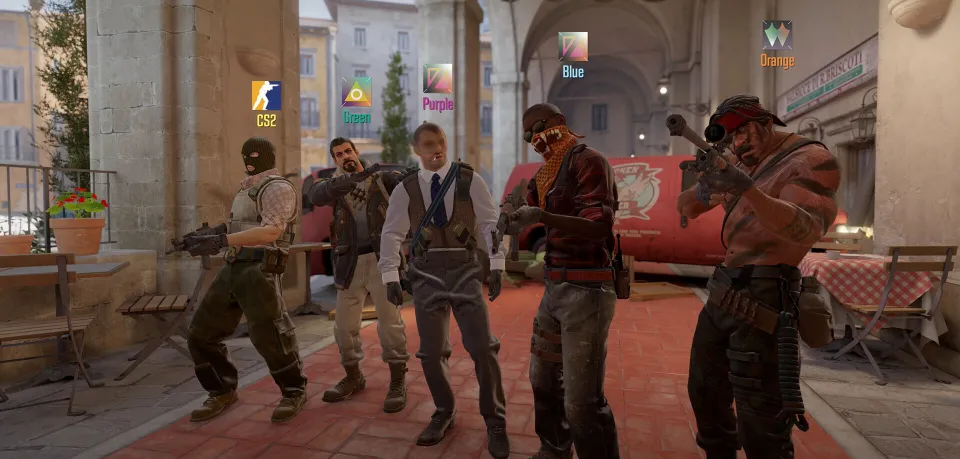
In Competitive mode, teammates have different colors on the radar and scoreboard by default. The cl_teammate_colors_show 1 command controls this. Setting it to 2 adds letters alongside the colors, so you can identify teammates by their labels too.
| cl_teamid_overhead_mode | What appears above teammates |
|---|---|
| 0 | Markers off |
| 1 | Markers |
| 2 | Markers and name |
| 3 | Markers, name, and loadout; default |
If there’s too much information above your teammates, set cl_teamid_overhead_mode to 1 or 2. We’d keep the name markers on. They make it easier to identify teammates without taking up space with their loadout above the model.
- hud_showtargetid controls the player name shown under your crosshair. The default is 1.
- cl_showloadout controls whether your loadout is shown. The default is 1.
- gameinstructor_enable controls beginner tips. The default is 0.
- “Hide Player Names” replaces the names of players who aren’t your friends with neutral ones. The cl_sanitize_player_names variable controls this setting.
How to Show FPS, Ping, and Connection Problems
The menu has 3 separate indicators: frame time and FPS, ping, and connection problems. Each has the same display modes. You can show warnings only when conditions are poor or keep an indicator on screen all the time.
- Show frame time and FPS
- Show ping
- Show connection problems
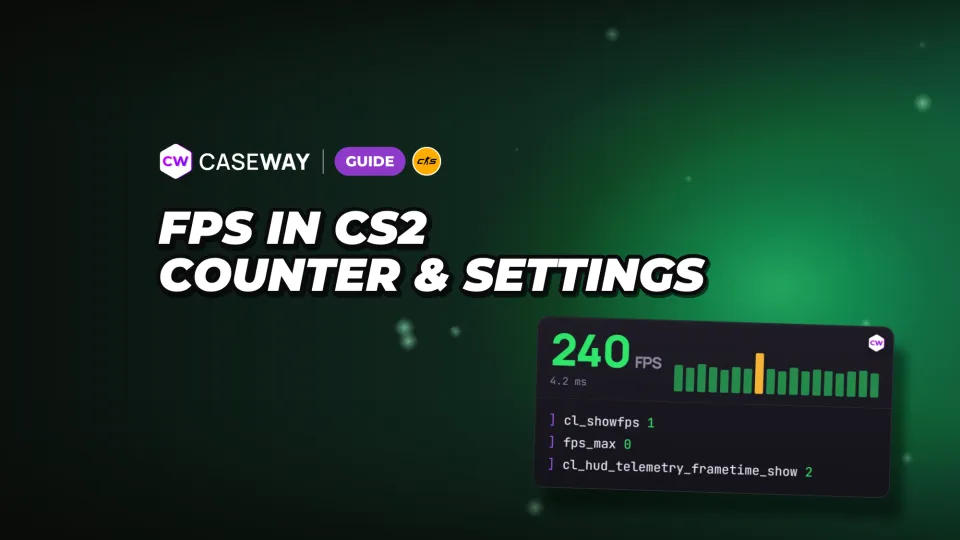
All 3 are set to 1 by default. The high-ping threshold is 100 ms. To keep your ping on screen, enter cl_hud_telemetry_ping_show 2. To always show FPS and frame time, enter cl_hud_telemetry_frametime_show 2.
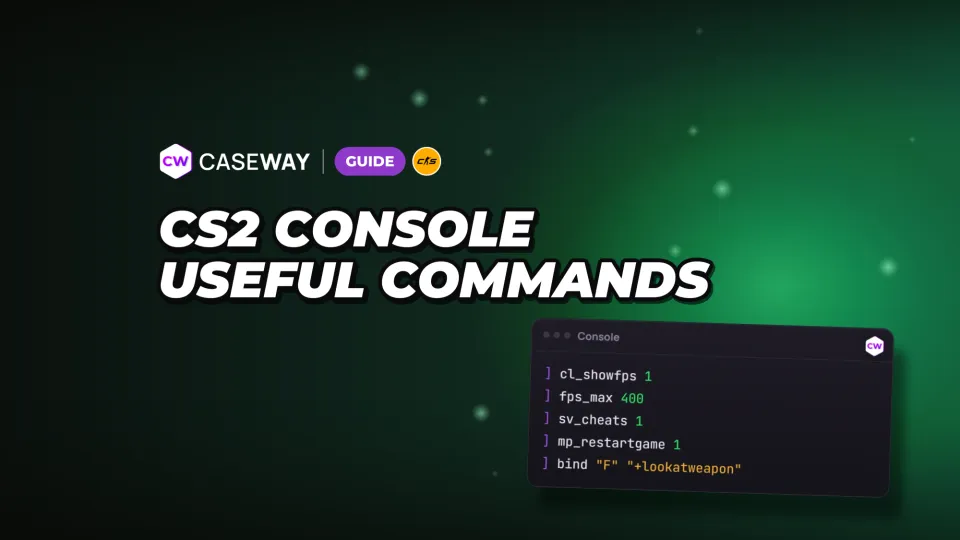
- cl_showfps 1 displays a basic FPS counter at the top of the screen.
- cl_showfps 2 enables a smoothed counter.
- cl_showfps 0 hides the counter.
The counter only displays your FPS. To improve it, try our CS2 FPS commands, with ready-made setups tested in-game.
How to Hide the HUD in CS2 for Video and Turn It Back On
To hide most of the HUD, enter cl_draw_only_deathnotices 1. Your crosshair and kill feed will remain. This command works without cheats. To restore the regular interface, enter cl_draw_only_deathnotices 0.
How to Hide the HUD, Hands, and Weapon Completely
You need 2 separate commands for a completely clean shot. cl_drawhud 0 hides the entire interface, while r_drawviewmodel 0 hides your hands and weapon. Both are cheat-protected and work on your own server after you enter sv_cheats 1.
- On your own server, enter sv_cheats 1.
- Enter cl_drawhud 0 to hide the HUD.
- Enter r_drawviewmodel 0 to hide your hands and weapon.
Keep the Radar or Kill Feed Visible and Restore the HUD
With the HUD hidden, cl_drawhud_force_radar 1 keeps the radar visible. To keep the kill feed, enter cl_drawhud_force_deathnotices 1. Set these variables back to 0 after recording. Set the HUD and weapon model variables to 1 to turn them back on.
- Regular interface mode
- Entire HUD
- Hands and weapon
- Regular radar display
- Regular kill feed display
Frequently Asked Questions
How to Hide the HUD in CS2
Enter cl_draw_only_deathnotices 1 to keep only your crosshair and kill feed without enabling cheats. To hide the entire interface, use cl_drawhud 0 after entering sv_cheats 1 on your own server. Use r_drawviewmodel 0 to hide your hands and weapon separately.
How to Change the HUD Color in CS2
Choose “HUD Color” in the menu, or enter cl_hud_color with a value from 0 to 12. For example, cl_hud_color 9 sets it to green. A value of 0 uses your team color.
How to Make the CS2 HUD Smaller
Lower the “In-Game HUD Size” setting or enter hud_scaling 0.9. The minimum value is 0.9, the default is 1, and the maximum is 1.1. To move the HUD away from the edges, use safezonex and safezoney.
How to Set Up the CS2 Radar to See the Whole Map
Set cl_radar_scale 0.25 to zoom out and see more of the map. Add cl_radar_always_centered 0 to let the radar use its full area. Adjust the radar’s size separately with cl_hud_radar_scale, from 0.8 to 1.3.
How to Turn on the FPS Counter in CS2
Enter cl_showfps 1 to show a basic counter at the top of the screen. You can also set “Show Frame Time and FPS” to “Always” in the menu, or enter cl_hud_telemetry_frametime_show 2. This mode shows both FPS and frame time.