
Mouse Wheel Jump Bind
Players bind jump to the mouse wheel to jump repeatedly: scroll up or down to jump, while space stays bound to jump as well. Enter the commands in the console. First, enable “Enable Developer Console” in the game settings, then open the console with the ~ key.
- Jump when scrolling down
- Jump when scrolling up
- Jump remains bound to spacebar
By default, the mouse wheel switches weapons: scroll up for invprev, down for invnext. A jump bind replaces this action. To restore weapon switching, use bind "mwheelup" "invprev" and bind "mwheeldown" "invnext". Space is already bound to jump, so the third line is only needed if that bind has changed.
This bind is allowed because it contains a single command. Since August 19, 2024, Valve has disallowed combining multiple movement and attack actions in one bind. We explain why below, in the section on jumpthrows. In our bind generator, mouse wheel jump is a ready-made preset. The generator shows which default binds it will replace.
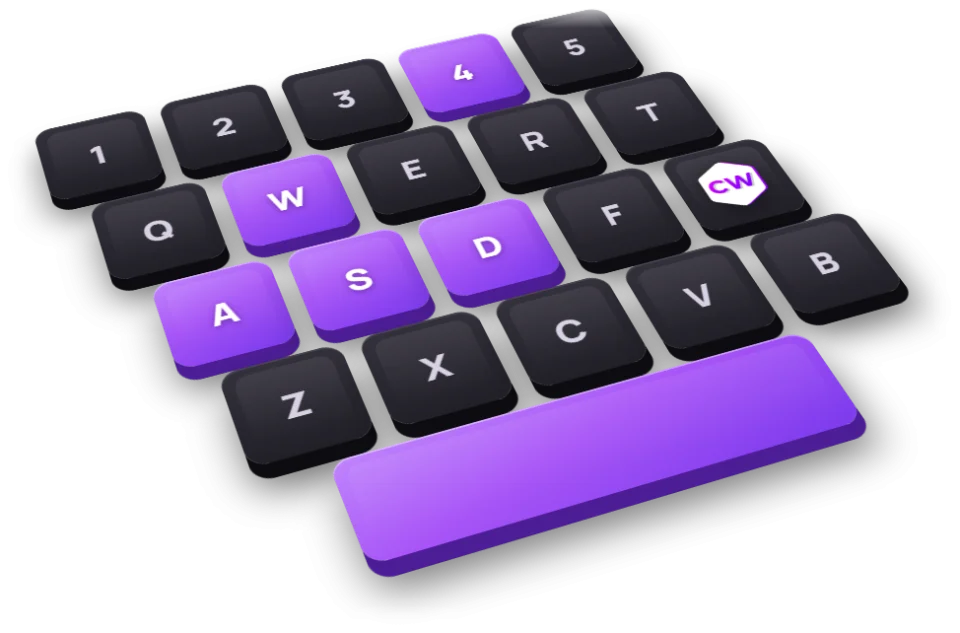
How to bind a key in CS2
A bind is a command assigned to a key. To set one up, enable “Enable Developer Console” in the game settings, then open the console with ~. Enter the commands below there.
- Where to enter commands
- In the console, opened with ~ (enable it in the game settings)
- Format
- bind "key" "command"
- Mouse Wheel Jump
- bind "mwheeldown" "+jump"
- Save
- host_writeconfig
- Jumpthrow
- Doesn't work in matchmaking since August 19, 2024
- Check which keys are already boundLists the keys and the commands bound to them. Open the console and enter
key_listboundkeys. - Bind a command to a keyThe basic format is bind "key" "command". Put the command in quotation marks, especially if it contains multiple actions. The example selects a smoke grenade with Z. Open the console and enter
bind "z" "slot8". - Remove a bind you don't needRemoves the bind from a key; it doesn't restore the previous command. Open the console and enter
unbind "z". - Restore the default controlsRestores the default binds for all keys. Open the console and enter
binddefaults.
Use key_findbinding followed by a command to find which key is assigned to an action. For example, key_findbinding slot8 finds the bind for your smoke grenade. It's faster than checking the full list if you remember the action but not the key.
Don't use unbindall to restore the default controls. It removes every bind. Use binddefaults to restore the default key assignments.
Useful binds: grenades, inspect, and messages
For grenade binds in CS2, individual slots are handy: each key selects a specific grenade, while slot4 cycles through them. For example, bind "z" "slot8" selects a smoke grenade with Z, and bind "x" "slot7" selects a flashbang with X.
- Selects your primary weapon
- Selects your pistol
- Selects your knife
- Cycles through grenades
- Selects the bomb
- Selects an HE grenade
- Selects a flashbang
- Selects a smoke grenade
- Selects a decoy grenade
- Selects a Molotov or incendiary grenade
- Switches back to your previous weapon
- Inspects your weapon
- Places a ping where you're looking
- Opens the Graffiti menu
- Opens the radio command menu
- Shows your teammates' equipment
- Switches your weapon to the other hand
- Sends a message in all chat
- Sends a message in team chat
- Shows the FPS counter
Put a command from the list above in the second set of quotes after `bind`. Inspect Weapon (+lookatweapon) and Switch Hands (switchhands) are already bound to F and H. Use the commands to bind them to another key, for example: `bind "mouse4" "switchhands"`. For a short message with no quotation marks inside it, you can use `bind "p" "say_team Need a smoke"`.
You can bind individual movement and attack actions the same way: +jump to jump, +duck to crouch, +attack to fire or throw, and +attack2 for the alternate attack. For example, bind "mwheeldown" "+jump" makes you jump when you scroll down. That's one movement command, not a jump-throw bind.
Use the CS2 bind generator to set up key binds and copy them as one line. It's handy when you need to transfer several actions at once instead of entering each bind separately.
How to make a buy bind
Use buy followed by the item's internal name to purchase gear. To buy multiple items with one key, separate the commands with semicolons inside a single set of quotation marks. The command name may differ from the weapon's name in the buy menu. For example, M4A1-S uses m4a1_silencer.
Since October 2023, `buy <item>` searches your loadout for the named item and won’t work if you don’t have it equipped. For example, `buy m4a1` buys an M4A4 only if it’s in a rifle slot. Otherwise, use `buy m4a1_silencer` or buy by slot with `buy rifle2`.
| Item | Command |
|---|---|
| AK-47 | buy ak47 |
| M4A1-S | buy m4a1_silencer |
| M4A4 | buy m4a1 |
| AWP | buy awp |
| Desert Eagle | buy deagle |
| Body armor | buy vest |
| Body armor and helmet | buy vesthelm |
| Defuse Kit | buy defuser |
| Zeus x27 | buy taser |
| Smoke grenade | buy smokegrenade |
| Flashbang | buy flashbang |
| HE grenade | buy hegrenade |
| Molotov | buy molotov |
| Incendiary grenade | buy incgrenade |
| Decoy grenade | buy decoy |
Weapons for both sides and a numpad setup
You can bind weapons for both the Terrorist and Counter-Terrorist sides to one key: bind "kp_end" "buy ak47; buy m4a1_silencer". The game skips the weapon your side can't buy, so you don't need two separate binds.
Here's a setup for the numpad's kp_end key: bind "kp_end" "buy ak47; buy m4a1_silencer; buy vesthelm; buy smokegrenade; buy flashbang". This combines your side's rifle, body armor and helmet, a smoke grenade, and a flashbang. If you prefer the M4A4, replace buy m4a1_silencer with buy m4a1.
Buy binds by equipment slot
Instead of a specific item name, you can use a slot: buy secondary0, buy midtier1, or buy rifle2. The number is the item's position in the selected equipment category, starting at zero. This bind uses the item's slot in your loadout rather than its name.
You can also build buy binds with the bind generator. Keep one game restriction in mind when testing them: buy binds don't work during halftime pauses. This restriction has been in place since the July 3, 2025 update.
What happened to the jump-throw bind in CS2
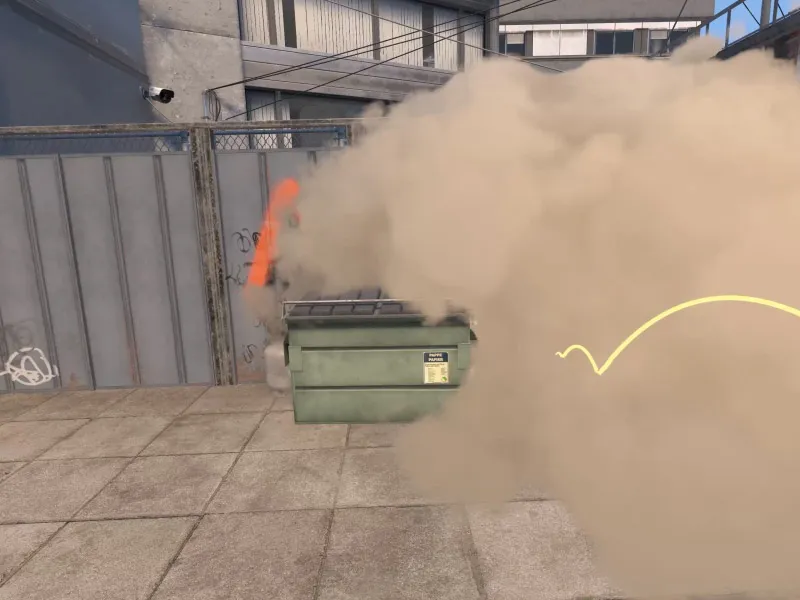
Since the August 19, 2024 update, binds that combine certain movement or attack commands don't work by default. Jump-throw binds are affected, too. A regular grenade-selection bind or a standalone +jump bind is different: neither combines jumping and throwing.
Valve's update notes list commands that can't be combined with another command in a bind: sprint, reload, attack, attack2, turnleft, turnright, turnup, turndown, forward, back, left, right, moveup, movedown, klook, use, jump, duck, strafe, zoom, yaw, pitch, forwardback, rightleft. Semicolons aren't banned on their own, so you can still combine buy commands in one bind.
Why Valve removed automation
In its Side-stepping Skill post, Valve explained that it no longer allows automation that replaces coordination and reaction skills with scripts or devices. This includes null binds and jump-throw binds.
On Valve's official servers, players suspected of automating multiple actions with one key may be kicked from the match. The update also mentions detecting some kinds of movement and shooting automation, such as hardware-based counter-strafing. Valve asks players to turn off keyboard features like Snap Tap before a match.
How to throw a grenade while jumping without a bind
Valve says jump-throws are reliable without scripts or special binds: just jump and throw the grenade quickly. Do both actions yourself instead of putting them on one key. Nearby players can now hear the jump-throw confirmation sound, too.
Since November 2024, the grenade preview camera has shown the result of a jump-throw while you hold jump. In the May 2026 update, Valve improved the consistency of the throw and the camera’s accuracy.
Where multi-action binds work
You can restore these binds on your own server for practice. The cl_allow_multi_input_binds variable is set to 0 by default and protected as a cheat. To enable it, you first need sv_cheats 1. This method isn't available in matchmaking.
- Enable cheats on your serverThe variable won't work unless you do this. It's protected as a cheat. Open the console and enter
sv_cheats 1. - Allow multi-action bindsFor practice on your own server only. This isn't a way to use automation in official matches. Open the console and enter
cl_allow_multi_input_binds 1.
For more practice-session settings, see our CS2 Bot and Practice Commands guide. Allowing multi-action binds on your own server doesn't change the rules on Valve's official servers.
How to save binds and load your settings
Once you've set everything up, use host_writeconfig to save your player settings. If you keep your commands in a cfg file, run it with exec followed by the file name. This lets you load a prepared setup without entering every line in the console again.
- Saves your player settings
- Runs a cfg file
- Assigns a name to a command or command sequence
- Cycles a variable through the specified values with each press
- Increases a variable's value by a set step
alias is useful for creating custom command sets, toggle for switching between values, and incrementvar for changing a value in steps. These help organize your settings; they don't bypass restrictions on combining movement or attack actions.
Before changing your controls, run key_listboundkeys and save the lines you need in your cfg setup. That way, you can restore specific binds without resetting all your controls with binddefaults.
Use the autoexec builder in FPS Commands to prepare your file. Decide what you want to bind and test it, then save your setup.
Frequently asked questions
How to bind a key in CS2
Enable the developer console in the settings and open it with ~. Enter bind "z" "slot8" to bind a smoke grenade to Z, or replace the key and command with the ones you want. Remove the bind with unbind "z".
How to Bind Jump to the Mouse Wheel in CS2
Enter bind "mwheeldown" "+jump" in the console to jump when scrolling down, or bind "mwheelup" "+jump" to jump when scrolling up. The wheel will stop switching weapons. To restore that, enter bind "mwheeldown" "invnext" and bind "mwheelup" "invprev".
How to make a buy bind in CS2
Use bind with the buy command and the item's internal name. For example: bind "kp_end" "buy ak47; buy m4a1_silencer". Separate purchases with semicolons. The game skips items that aren't available to your side. Buy binds don't work during halftime pauses.
Do jump-throw binds work in CS2?
In matchmaking, a bind that combines jumping and throwing no longer works. Valve recommends jumping and quickly throwing the grenade manually. You can enable multi-action binds only on your own server with sv_cheats 1 and cl_allow_multi_input_binds 1.
How to reset all binds in CS2
Use binddefaults to restore the default key binds. unbindall does something else: it removes every bind. To remove just one, use unbind followed by the key.
How to bind grenades in CS2
Bind individual slots: slot6 selects an HE grenade, slot7 a flashbang, slot8 a smoke grenade, slot9 a decoy, and slot10 a Molotov or an incendiary grenade. For example, bind "z" "slot8" selects a smoke grenade with Z. Use slot4 to cycle through your grenades.