
- Move hands back
- FOV 68, offsets X 2.5, Y 2, Z -2
- Left hand
- cl_prefer_lefthanded 1
- Switch hands
- switchhands
- Bobbing
- cl_bob commands don’t work in CS2
- Shooting
- The viewmodel only changes what you see
What the viewmodel changes in CS2
The viewmodel is the on-screen model of your hands and weapon. You can move it so it blocks less of your view on the right and at the bottom. This only affects the model: bullets go where your crosshair points, not where the barrel appears to point.
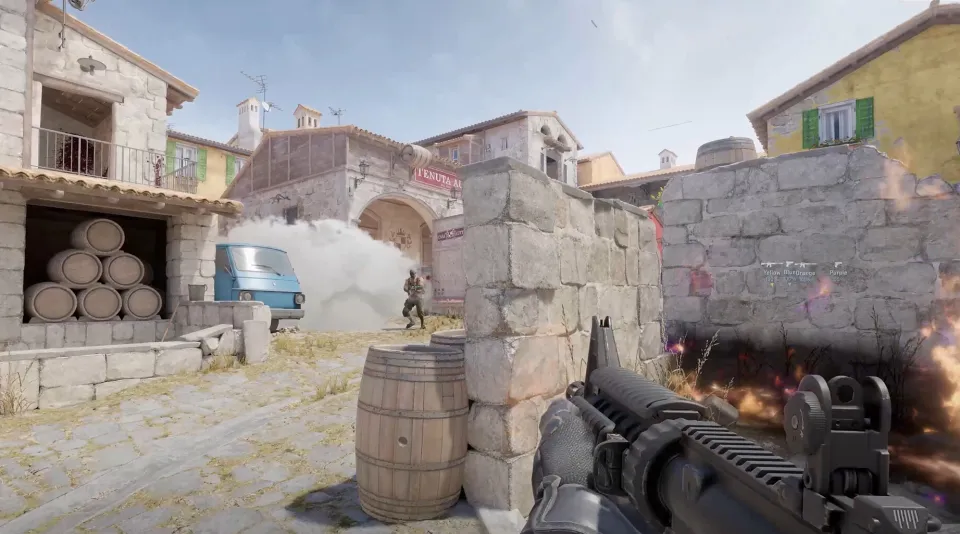
If your weapon blocks part of the screen, start with a preset or the command set below. We’d move the model back first, then adjust one offset at a time. That makes it easier to tell which setting gives you a clearer view.
Presets in the settings menu
Find “Viewmodel Position” in the game settings. You can choose a preset without using the console and compare how much screen space the weapon takes up.
- “Standard.”
- “Classic.”
Valve removed the third option, “Enlarged,” in April 2024.
The viewmodel_presetpos variable sets your preset. Its default value is 1, or “Standard.” It’s easier to choose a preset in the menu, where each option is labeled.
CS2 viewmodel commands and limits
You need four variables to adjust your viewmodel manually. viewmodel_fov sets its field of view, while viewmodel_offset_x, viewmodel_offset_y, and viewmodel_offset_z move it along the three axes. All four work without sv_cheats and are saved in your player settings.
- In the game settings, enable “Enable Developer Console.”
- Press ~ to open the console, then enter the command and value you want.
- Viewmodel field of view
- Move left and right
- Move forward and back
- Move up and down
Use a period for decimal values in commands, as in viewmodel_offset_x 2.5. You can’t go beyond these limits: viewmodel_fov tops out at 68, and a higher value won’t move the model farther away.
Ready-made presets to move the model back or restore the defaults
Enter each preset below as a single line. The “Copy all” button separates the commands with semicolons. The first uses the maximum values, moving the model as far right, forward, and down as possible. The second restores the defaults.
If the maximum settings feel off, keep FOV at 68 and adjust one offset at a time. That makes it easier to see which one was getting in your way.
This command resets the FOV and offsets to their default values. It doesn’t change which hand your weapon is in. A separate variable controls that.
How to switch hands in CS2
Use cl_prefer_lefthanded to choose which hand holds your weapon. Its default value is 0, which puts the weapon on the right. Set it to 1 for the left hand, or use switchhands to move the weapon to the other hand.
There are also direct commands: switchhandsleft puts your weapon in your left hand, while switchhandsright puts it in your right. You can bind them to separate keys if you don’t want to switch hands back and forth each time.
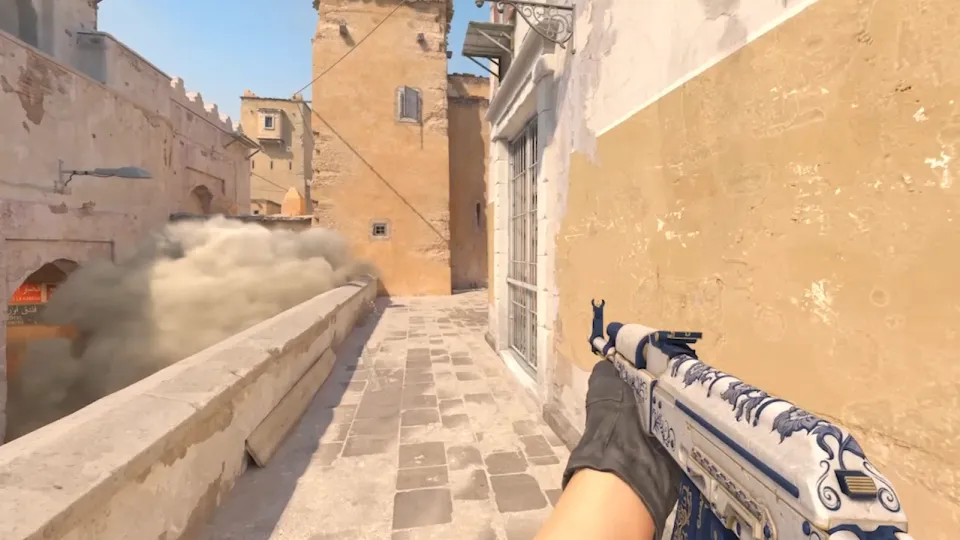
- cl_prefer_lefthanded 1 — switch to your left hand.
- cl_prefer_lefthanded 0 — switch to your right hand.
- switchhands — move your weapon to the other hand.
- bind "mouse5" "switchhands" to put hand switching on the side mouse button (mouse4 is already used for the microphone by default). Hand switching is bound to H by default; you can change the key in the keyboard settings under "Switch Viewmodel Left/Right Hand".
Use the variable if you always want your weapon on the left. A bind is useful if you switch sides depending on the situation. For example, you can hold an angle on the left without your barrel blocking the view. See our CS2 keybind guide to learn how to bind keys.
Don’t use cl_righthand from old CS:GO configs. CS2 doesn’t have this variable. Use cl_prefer_lefthanded and switchhands to choose your weapon hand.
Hand bobbing in CS2: what you can disable
You can’t disable viewmodel bobbing with the CS:GO commands. CS2 doesn’t have cl_bob, cl_bobamt_lat, cl_bobamt_vert, or cl_bobcycle. If you enter one, the game will say the command is unknown.
Why viewmodel_recoil doesn’t work
CS2 doesn’t have the viewmodel_recoil variable either, so you can’t use it to stop your weapon from moving when you shoot.
The cl_crosshair_recoil command controls whether your crosshair follows recoil. It’s enabled by default, with a value of 1. Changing it affects the crosshair, not hand bobbing.
- cl_crosshair_recoil 1 — enable crosshair recoil follow.
- cl_crosshair_recoil 0 — disable crosshair recoil follow.
How to hide your hands for video recording
The r_drawviewmodel 0 command hides your hands and weapon model entirely. It’s cheat-protected and only works with sv_cheats 1 on your own server, for example, when recording video. You can’t hide the model this way in matchmaking.
How to save your viewmodel settings
Your viewmodel_fov and three viewmodel_offset values are saved in your player settings. To save them right after you’ve set them, enter host_writeconfig.
- Enter a preset or set the values manually.
- Check the model’s position on screen.
- Run host_writeconfig to save your settings right away.
You can keep your own preset in an autoexec. Build the file with the autoexec generator in “Commands for FPS”, then add the commands you want. Run the file with exec followed by its name.
Frequently asked questions
How do you move your hands back in CS2?
Enter viewmodel_fov 68; viewmodel_offset_x 2.5; viewmodel_offset_y 2; viewmodel_offset_z -2. This moves the model as far back as the limits allow. You can then fine-tune each offset.
How to put your weapon in your left hand in CS2
Enter cl_prefer_lefthanded 1 to switch hands. Use switchhands to switch back. The command bind "h" "switchhands" binds the switch to H.
Does cl_bob work in CS2?
No. CS2 doesn’t have cl_bob or the old cl_bobamt_lat, cl_bobamt_vert, and cl_bobcycle commands. The game will say the command is unknown. You can’t use them to stop the viewmodel from bobbing as you walk.
Does the viewmodel affect shooting?
No. The viewmodel only changes what you see on screen. Bullets go where your crosshair points. Moving your weapon to a more comfortable spot clears your view.
How to reset your viewmodel
Enter viewmodel_fov 60; viewmodel_offset_x 1; viewmodel_offset_y 1; viewmodel_offset_z -1. To switch back to your right hand too, enter cl_prefer_lefthanded 0. You can then save your settings with host_writeconfig.