
- Headphones
- Stereo, with external enhancements and virtual surround sound turned off.
- Equalizer
- “Crisp” helps you pinpoint sounds; “Smooth” softens harshness.
- Channels
- Start with isolation at 0% and Perspective Correction on.
- Mic
- Check your recording device, mode, key, and activation threshold.
Turn off external surround sound before changing your settings
Valve recommends playing with stereo headphones. CS2 processes 3D audio based on sound-source positions and map geometry. External enhancements and virtual surround sound can interfere with this, so turn them off.
First disable audio processing on your device, then change one in-game setting at a time. That makes it easier to tell which setting helped you pinpoint sounds.
Choosing a playback device and setting up 3D audio
“Audio Device” selects where CS2 sends sound. “Audio Device Type” sets the number of output channels. If you use stereo headphones, configure the output for stereo.
“Advanced 3D Audio Processing” uses HRTF to simulate three-dimensional sound. Leave it on as a starting point. Use “Off (Compatibility Mode)” to troubleshoot audio-device compatibility issues.
- HRTF
- Processing that simulates how we hear sounds coming from different directions.
- Panning
- How sound is distributed between the left and right channels to convey a source’s position.
CS2 equalizer: “Natural,” “Crisp,” or “Smooth”
The equalizer preset changes the overall sound and may compensate for distortion from your device. It can take time to get used to a new sound. Pick a preset based on how easily you can pinpoint sounds and how comfortable the game is to listen to.
| Preset | What it changes | When to try it |
|---|---|---|
| Natural | Uncolored; on by default | A good starting point for comparison |
| Crisp | Boosts mids and highs and reduces muddiness | If it’s hard to tell where a sound is coming from |
| Smooth | Tames mids and highs, harshness, and volume spikes | If your ears get tired during long sessions |
We’d start with “Crisp” if your main problem is pinpointing footsteps. If the sound feels harsh, try “Smooth.” It can also work well with studio headphones or if you play at high volume.
You can set a different equalizer preset for Competitive, Casual, Deathmatch, and Arms Race. You don’t have to use the same sound profile in every mode.
CS2 side-channel isolation and perspective correction
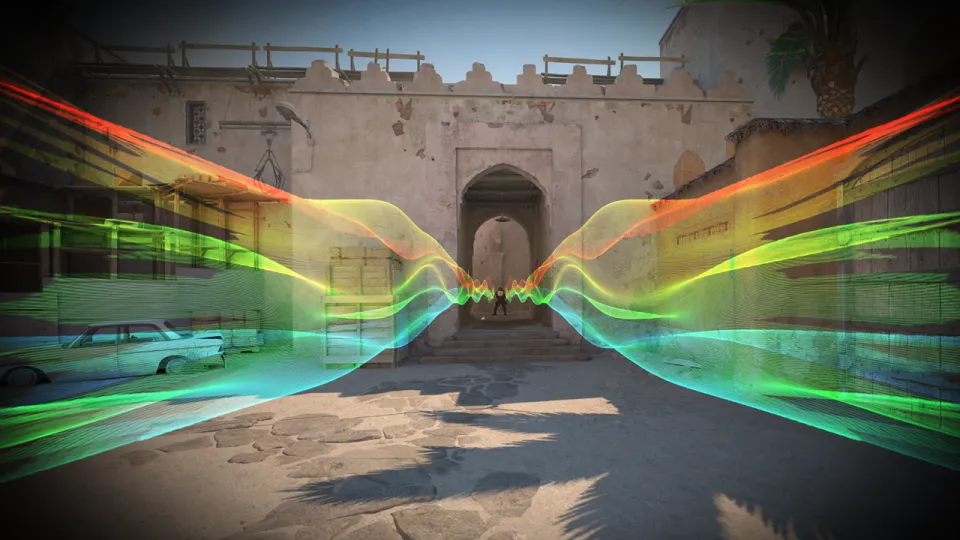
Isolation changes how side sources are split between the channels. The default is 0%, which gives you physically accurate panning and the most precise sound positioning.
| Isolation | How the source sounds | What to keep in mind |
|---|---|---|
| 0% | Physically accurate panning | The default for precise sound positioning |
| 100% | A source directly to your side plays almost entirely in one channel | Easier to tell which side a sound comes from, but some angles can be misleading |
When to turn off Perspective Correction
When set to “Yes,” sound accounts for your field of view. A source at the edge of the screen sounds slightly in front of you, while one off-screen to the side plays only in the left or right channel. This is on by default.
When set to “No,” sources at the edge of your field of view play strictly in the left or right channel. This can suit players who sit very close to the screen, play on a portable display, or prefer the classic sound. At some angles, though, it can still be misleading.
Don’t set isolation to 100% just because it’s the maximum. Stronger separation between the left and right channels doesn’t give you more accurate positioning at every angle.
We’d leave isolation at 0% and Perspective Correction on “Yes” unless you’re used to the old panning. These settings preserve realistic sound positioning and account for your field of view.
Master volume, round music, and the MVP anthem
“Master Volume” controls all audio through volume. You can also adjust game audio separately with snd_gamevolume. Music has separate settings for each mode, so check the mode you play or select “Apply Competitive Mode Settings to All Modes.”
The variables in the table apply to one mode. To use them for other modes, add the relevant suffix, for example: snd_mvp_volume_casual, snd_mvp_volume_deathmatch, snd_mvp_volume_armsrace, snd_mvp_volume_rush. It’s easier to set up each mode in the menu or click “Apply Competitive Settings to All.”
- Menu music has its own volume setting, separate from match music.
- The start, middle, and end of a round each have a separate slider.
- Bomb or hostage music and the final 10-second warning have separate settings.
- Death music and the MVP anthem also have their own volume settings.
If music is distracting, lower its slider instead of turning down the master volume. To turn off the MVP anthem completely, set “MVP Anthem Volume” to 0. That’s the name used in the English menu. The list of commands below includes default values and variables for each type of music.
The “Music Volume” slider (snd_musicvolume, from 0 to 1, default 1) controls all music at once. It scales every other music slider across all modes. Set it to 0 to mute all music.
How to mute the MVP anthem when both teams have living players and keep audio on when minimized
“Mute MVP anthem when both teams have living players” mutes the anthem under that specific condition. The command snd_mute_mvp_music_live_players 1 enables this behavior.
“Mute Audio When Game Is in Background” controls sound when the game isn’t the active window. The console variable works the other way around: snd_mute_losefocus 1 mutes the game, while 0 keeps the sound on.
How to set up your mic and adjust teammate volume in CS2
First, select your “Voice Recording Device.” Then check “Voice/Microphone Mode” and the assigned key. The “Open Mic” option keeps your mic open.
You can switch between open mic and push-to-talk on the fly. In Keyboard settings, look for “Toggle Between Voice Activation and Push-to-Talk”; in the console, use voice_toggle_open_mic. Voice chat works in the lobby and during the map veto and pick phase in Premier.
With push-to-talk, your voice transmits while you hold the key, as long as it’s louder than the “Microphone Activation Threshold.” If the threshold is too high, quiet speech may not come through. Turn on “Hear Your Own Voice” to test it.
What Optimize Microphone Activation does
“Optimize Microphone Activation” is tied to voice_always_sample_mic and opens your mic when the game starts. You still need to set the voice mode, push-to-talk key, and activation threshold separately.
How to make other players’ voices louder
“Other Players’ Voice Volume” is controlled by snd_voipvolume. Its default value is 1, and the range is 0 to 2. “Position Other Players’ Voices” makes each voice sound like it’s coming from the speaker’s location.
The mic key is easiest to set in the keyboard settings, under "Use Microphone". In the console, the bind is bind "key" "+voicerecord". By default, the mic is on the side mouse button (mouse4), and V is taken by the chat wheel. If you're writing your own binds in CS2, keep the mic key you picked in mind.
What to check if no one can hear you
- Select the right “Voice Recording Device.”
- Check “Voice/Microphone Mode” and choose push-to-talk or “Open Mic.”
- For push-to-talk, check the assigned key and hold it while speaking.
- Check the “Microphone Activation Threshold.” Your voice must be louder than the threshold.
- Turn on “Hear Your Own Voice” to test your mic.
- Check voice_modenable. Set it to 1 to enable voice chat.
CS2 audio commands and default values
You can change these variables via the CS2 console. In commands, decimals use a period. The EQ profile, L/R isolation, and perspective correction are easier to set in the menu, where you can see the actual option names.
- Master volume
- Game volume
- Other players’ voices
- Equalizer preset
- Side-channel isolation
- Mute audio when minimized
- Mute MVP anthem when both teams have living players
- Menu music
- Round start
- Round middle
- Round end
- Bomb or hostage
- Final 10 seconds
- Death music
- MVP anthem
FAQ
Which equalizer preset should you use in CS2?
“Natural” leaves the sound uncolored. “Crisp” can make direction easier to pick out, but it may sound harsh. “Smooth” softens harshness and volume spikes, which can make long sessions easier on your ears.
What is side-channel isolation in CS2?
This setting changes how side sources are panned. At 0%, panning is physically accurate. At 100%, a source directly to your side plays almost entirely in one channel. The maximum makes it easier to tell which side a sound comes from, but can be misleading at some angles.
How to hear footsteps better in CS2
Use stereo headphones and turn off external enhancements and virtual surround sound. If you have trouble pinpointing sounds, try the “Crisp” preset. Start with isolation at 0% and Perspective Correction set to “Yes,” then change one setting at a time.
Why can’t anyone hear me in CS2?
Check your recording device, mic mode, and assigned key. With push-to-talk, hold the key while speaking and make sure your voice is above the activation threshold. Turn on “Hear Your Own Voice” to test the mic, and make sure voice_modenable is set to 1.
How to turn off the MVP anthem in CS2
Set “MVP Anthem Volume” to 0 (that’s the name used in the menu), or enter snd_mvp_volume 0. To mute the anthem only when both teams have living players, enable the relevant menu option or set snd_mute_mvp_music_live_players 1.