
- Your matches
- Go to Watch, then Your Matches, and click Download Match.
- FACEIT
- Click Watch Demo in the match room. Recordings from the last 30 days are available.
- File
- Extract the recording to game\csgo and launch it with playdemo.
- Controls
- Press Shift+F2 to show or hide the demo panel.
How to download a demo of your match
Matchmaking recordings are available in the CS2 menu. Download the match you want, then start watching. If your local recordings list is empty, the game displays: “No competitive matches downloaded. You can download a match from the ‘Your Matches’ section.”
- Open the Watch tab.
- Go to Your Matches.
- Select the match you want and click Download Match.
If the recording is no longer available, you’ll see this message: “The recording has expired and can no longer be downloaded.” You can’t download that demo through the menu.
The “Delete local recording files” button removes the downloaded copy. Use it when you no longer need the recording. If you might want to watch it again later, keep the file. You can download the match again only if the recording is still available.
How to download a FACEIT demo
On FACEIT, you download recordings from the room for a specific match, not from the Your Matches tab in CS2. According to FACEIT’s support page, Watch Demo is available for recordings from the last 30 days.
- Open the room for the match you want (match room).
- Click Watch Demo in the center of the page and download the archive.
- A downloaded file may be in .zst format (for example, match.dem.zst). Extract it with an archiver that supports Zstandard, such as 7-Zip 24.01 or newer, into the game\csgo folder inside the game directory.
- Launch CS2 and enter playdemo <file name> in the console.
Give the extracted file a short name using Latin characters, and keep the .dem extension. That makes it easier to enter in the console and helps avoid typos when you launch it.
How to launch a file with playdemo in CS2
The command playdemo <file> launches a recording in .dem format. For the method described here, put the file in the game\csgo folder inside the game directory. If you downloaded an archive, extract it first, then put the demo's file name into the command. Recordings downloaded through the menu, the game puts in place itself. According to the community, they go to the game\csgo\replays folder, and you can launch one with playdemo replays/name.
Keep in mind that chat in demos has been encrypted since the September 9, 2026 update. You can’t read team chat during playback. All chat is visible only when you watch through the in-game Watch menu, not with playdemo.
- In the game settings, enable “Enable Developer Console.”
- Open the console with the ~ key.
- Enter playdemo <file>, replacing <file> with the recording’s name and the .dem extension.
If you see the message “Demo file is incompatible with this game version.” when you launch, the demo was recorded on a different version of CS2. The “Allow Demo Version Mismatch” option in the demo settings doesn't fix the error. It only makes TrueView work when the client version in the recording was different from yours.
After you enable “Allow mismatch in demo versions,” TrueView may not work correctly. Keep that in mind when judging exactly what a player saw during a disputed moment.
How to Rewind a CS2 Demo and Switch Cameras
Press Shift+F2 to show or hide the demo panel. Use it to jump to a round, rewind or fast-forward by a few seconds, and change playback speed. Speed things up to find a moment, then switch back to normal speed or slow down before a death or firefight.
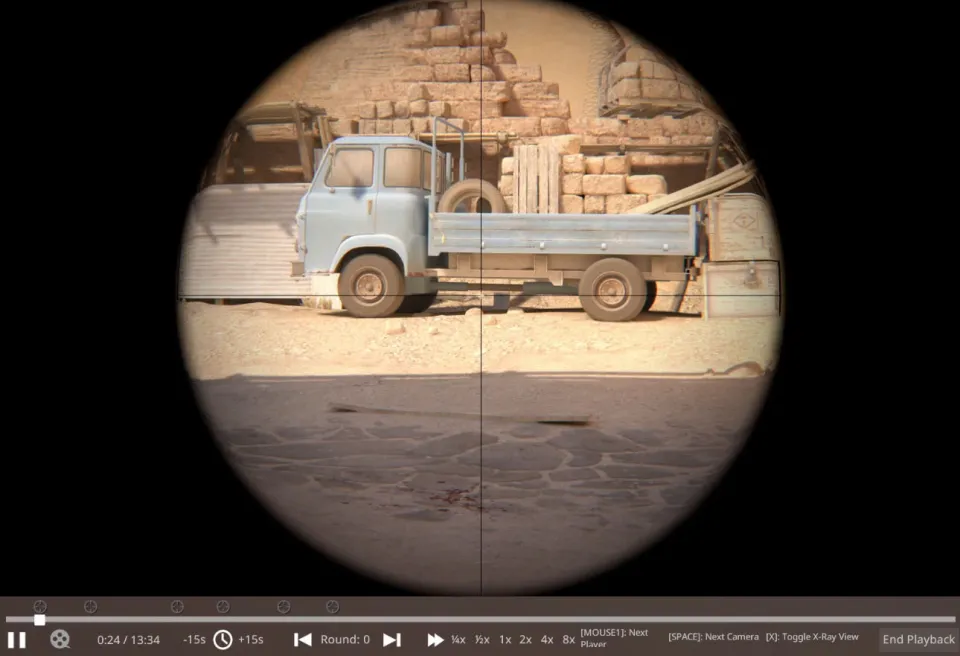
- Playback speeds: ¼, ½, normal, 2x, 4x, and 8x.
- Round controls help you jump to the right part of the match.
- The panel has “Highlights” and “Stop playback” options.
- The fire key switches to the next player; the secondary fire key switches to the previous one.
- The jump key changes the view, while the crouch key opens the overhead map.
- A separate key enables player outlines, or X-ray. The mouse options include “Enable mouse cursor” and “Control camera with mouse.”
Use the panel hints for firing, jumping, and crouching to see which controls they’re bound to. First-person view lets you follow the selected player’s actions. The overhead map helps you compare their position with everyone else’s.
What TrueView does
The “Enable TrueView” option recreates what the player saw by replaying client-side prediction. This gives you a more accurate picture of the match conditions. When reviewing your own play, look at both the opponent’s position and how the moment appeared from your perspective.
TrueView was added in the November 4, 2025 update. It’s enabled by default for demos recorded on the same game version. Control it in the console with cl_demo_predict: 0 disables it, 1 enables it only when the versions match (default), and 2 always enables it.
The “Include post-death actions” option also replays commands the server didn’t execute because the player had already died.
CS2 demo commands for pausing and jumping around
The panel covers everything you need for a regular replay. CS2 console commands come in handy when you need to pause, jump to a specific tick, or mark a moment to revisit later.
- Shows or hides the demo panel
- Pauses playback
- Resumes playback
- Toggles between pause and playback
- Changes playback speed
- Jumps to the specified tick in the recording
- Jumps to a point in the recording
- Marks the current tick
- Returns to the marked tick
- Shows information about the demo
- Pauses at the end of the recording; set to 0 to return to the menu
- Exits the game after playback
- Shows player outlines and names through walls while spectating
To revisit an episode, mark the current tick with demo_marktick, then jump back to it with demo_gotomark. That’s easier than searching for the same second by hand every time. By default, the game pauses at the end of a recording (demo_pause_at_end 1); set it to 0 to return straight to the menu.
How to review your deaths and lost rounds
We’d start with your deaths in first-person view, then watch the same moment from above. First, you check your actions and the information you had. Then, you compare them with player positions on the map. That way, the review doesn’t turn into a search for an opponent hiding behind a wall.
- Find the round and the moment before your death. Watch from first-person view and slow playback if needed.
- Pause and review where you were standing, where you were looking, and how you got information about the opponent.
- Switch to the overhead map. Compare your position with the players’ locations and the direction of the attack.
- Watch the moment from the opponent’s perspective to see how your position looked to them.
- Return to the moment and work out exactly what you’d change about your actions or positioning.
Use X-ray to check player positions, but start reviewing your decisions in first-person view. Otherwise, it’s easy to blame yourself for not knowing where an opponent was when you hadn’t seen them during the match. To share a moment with friends, find the round first, then mark the tick you want.
How to record your own demo on a server
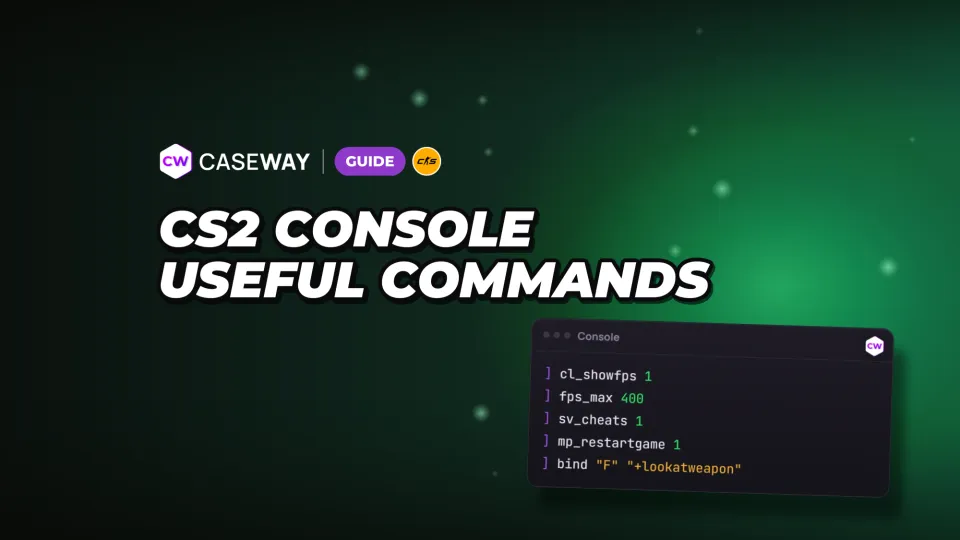
The record <name> command starts a recording, and stop ends it. But record is cheat-protected, so you can only use it with sv_cheats 1 on your own server. Servers have separate commands for recording CSTV.
- Starts a recording on your own server
- Stops a recording started with record
- Starts a CSTV recording on the server
- Stops the server’s CSTV recording
Frequently asked questions
How do you download a demo of your CS2 match?
Open Watch, go to Your Matches, then click Download Match. If the game says “The recording has expired and can no longer be downloaded,” you can’t download that recording anymore.
How do you watch a FACEIT demo?
In the match room, click Watch Demo and download the archive. Extract the file to Steam\steamapps\common\Counter-Strike Global Offensive\game\csgo. In the CS2 console, enter playdemo <file name>, replacing it with the name of the extracted demo.
How do you rewind a demo in CS2?
Press Shift+F2 to open the panel, then jump between rounds or rewind and fast-forward by a few seconds. To jump to a specific tick, use demo_gototick <tick> in the console. Use demo_marktick and demo_gotomark to return to a marked moment.
Why won’t my demo launch?
To launch through playdemo, check that the archive is extracted, the .dem file is in game\csgo, and its name is in the command. The message “Demo file is incompatible with this game version.” means the recording was made on a different version of CS2. The “Allow Demo Version Mismatch” setting has nothing to do with launching it. It's only there to turn on TrueView for a recording from a different client version, and then TrueView may work incorrectly.
How long are FACEIT demos stored?
Watch Demo lets you access match recordings from the last 30 days. The button is in the center of the match room page.