If you’re used to CS:GO or want larger enemy models, use stretched 4:3 at 1280×960. If you’d rather see more at the sides and have a sharper image, stick with your monitor’s native 16:9 resolution. The key is your graphics card settings: 4:3 won’t stretch on its own.
- Most common pro setup
- 1280×960, stretched 4:3
- Pros using 4:3
- 133 of 166 active players with known settings
- Horizontal FOV
- 90° at 4:3 and 106.26° at 16:9
- Stretched to 16:9
- Models are 33% wider, hitboxes stay the same
- Where stretching happens
- In the graphics driver; the game only selects 4:3
What the aspect ratio changes
In CS2, the vertical field of view stays the same at every aspect ratio: 73.74°. The aspect ratio only changes your horizontal field of view. It’s 106.26° at 16:9, 100.39° at 16:10, and 90° at 4:3. So the 4:3 image shows the center of the 16:9 image. You see the same area at the top and bottom, but the bars on the left and right disappear.
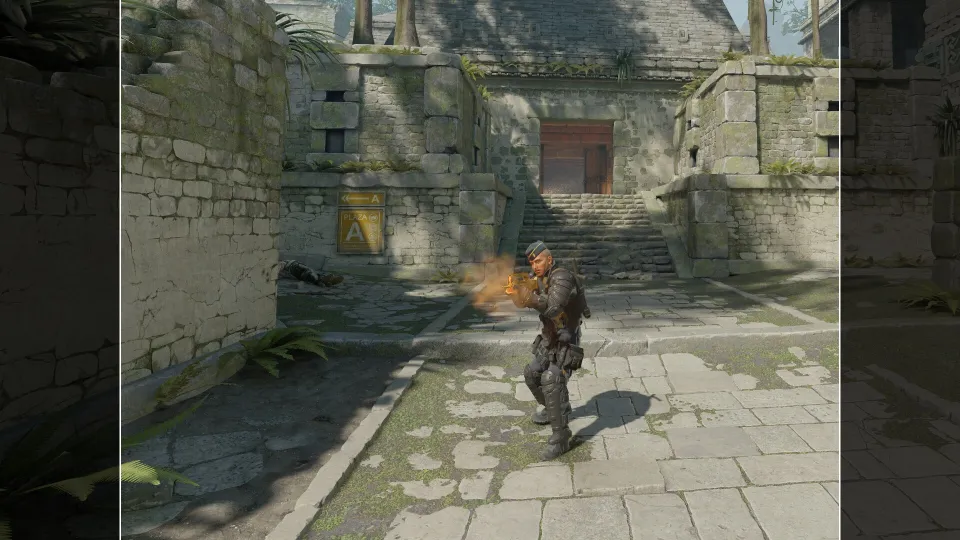
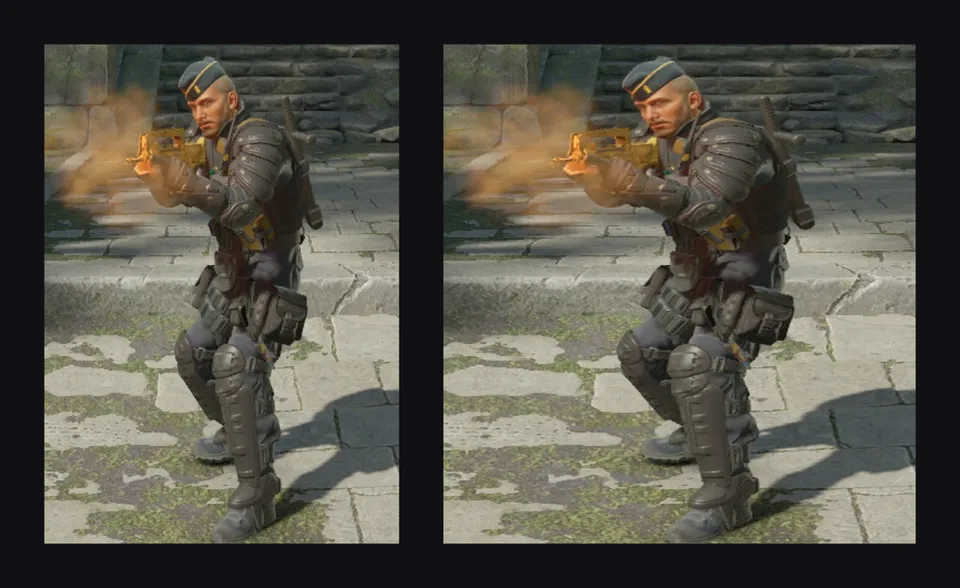
The next question is what to do with the space at the sides. If you leave it black, models stay the same size as they are at 16:9. If you stretch the image to fill the screen, everything gets wider. On a 16:9 monitor, it’s about a third wider.
| Aspect ratio | Example resolution | Horizontal FOV | Wider when stretched to 16:9 |
|---|---|---|---|
| 16:9 | 1920×1080 | 106.26° | — |
| 16:10 | 1680×1050 | 100.39° | 11% |
| 4:3 | 1280×960 | 90° | 33% |
| 5:4 | 1280×1024 | about 86° | 42% |
Black bars or stretched
There are 2 ways to play 4:3. With black bars, the image stays centered on the screen at its original proportions. Models are the same size as at 16:9, but you see less. Stretched 4:3 fills the whole screen. You see the same area as with 4:3 and black bars, but everything looks wider.
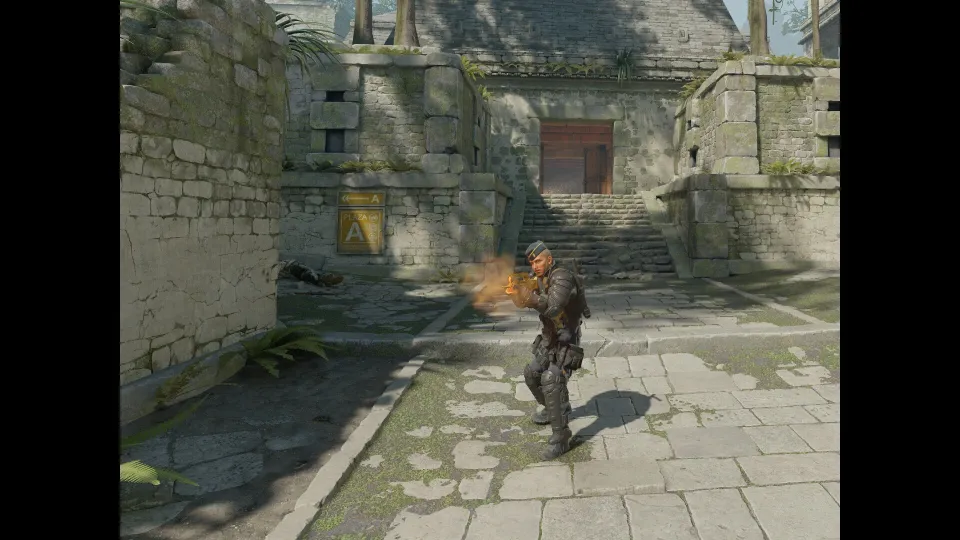
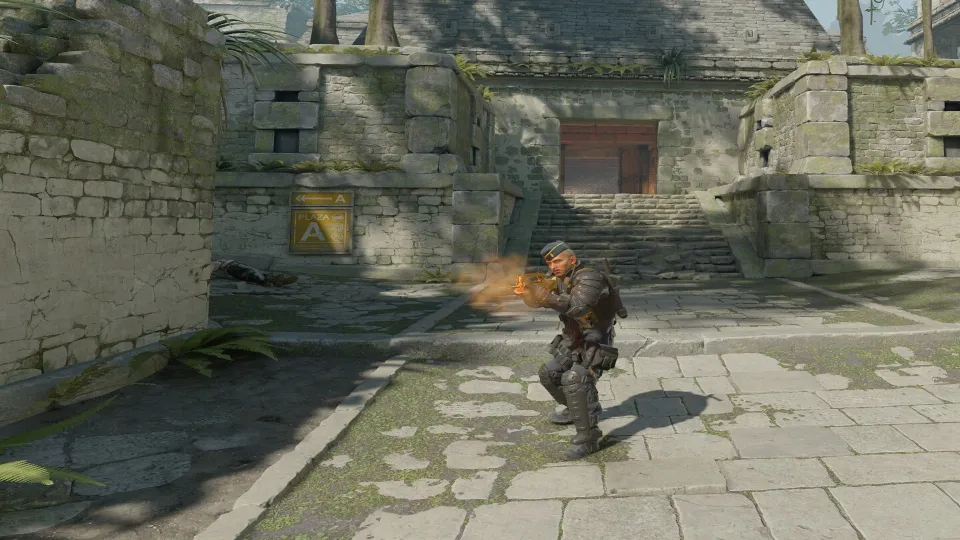
That’s why players use stretched resolution. Enemies look wider on screen, so they’re easier to spot and aim at. Hitboxes don’t change, and the game registers hits the same way as it does at 16:9. Only the image changes. The trade-off is that the image moves faster horizontally when you turn your mouse, and you’ll spot an enemy coming from the side later than you would at 16:9.
You may also get more FPS. 1280×960 has 41% fewer pixels than 1920×1080, so your FPS will go up if your graphics card is the bottleneck. If your CPU is the limit, which often happens in CS2 with a powerful graphics card, the difference will be small.
What pros play on
According to ProSettings, as of October 2026, 133 of 166 active pros with known settings play at 4:3, and 137 stretch the image to fill the screen. 18 play at their native 16:9 resolution without stretching. Among the 40 highest-ranked players on Caseway, 31 use stretched 4:3.
| Resolution | Aspect ratio | Players |
|---|---|---|
| 1280×960 | 4:3 | 114 |
| 1920×1080 | 16:9 | 18 |
| 1024×768 | 4:3 | 14 |
| 1280×1024 | 5:4 | 9 |
| 1680×1050 | 16:10 | 4 |
| 1440×1080 | 4:3 | 3 |
ZywOo, m0NESY, NiKo, and sh1ro play at 1280×960 stretched. ropz and xertioN use native 1920×1080, while stavn plays at 4:3 with black bars. Almost all pros run the game in fullscreen mode: 164 out of 166. They use high-refresh-rate monitors, most often at 360 or 600 Hz.
How to set stretched 4:3 in CS2
Setup takes 2 steps. Choose a 4:3 resolution in the game, then use your graphics driver to stretch it. If you only do the first step, you’ll get black bars on the sides. On some monitors, the image may appear in a small window in the center instead.
- Open the video settingsIn CS2, open “Settings” and go to the “Video” tab.
- Switch to fullscreen modeSet the display mode to “Fullscreen.”
- Select 4:3Set “Aspect Ratio” to 4:3 and choose 1280×960 or another resolution from the table above.
- Check the refresh rateSet the refresh rate to match your monitor. It may reset to 60 Hz when you change the resolution.
- ApplyClick “Apply.” If you still see black bars on the sides, adjust your graphics card settings.
Graphics card: stretch to fill the screen
- NVIDIAOpen NVIDIA Control Panel and go to “Display” > “Adjust desktop size and position.” Set “Scaling mode” to “Full-screen” and “Perform scaling on” to “GPU.” Check “Override the scaling mode set by games and programs,” then click “Apply.”
- AMDIn AMD Software, go to “Settings” > “Display.” Turn on “GPU Scaling” and set “Scaling Mode” to “Full Panel.”
- IntelIntel Graphics Command Center or Intel Arc Control: open the display section and set scaling to “Stretch.” The setting name may vary by software version.
- Go back to the gameRestart CS2 and check that the image fills the screen.
Stretching only works in fullscreen mode. In windowed mode or Fullscreen Windowed, the graphics driver won’t stretch the image, so you’ll see 4:3 with black bars.
If you still see black bars or a small window
- The game isn’t running fullscreen. Check the display mode in the video settings.
- NVIDIA Control Panel may not be set to override the scaling mode set by games, or may be set to “Aspect ratio” scaling.
- Your monitor is scaling the image instead of your graphics card. Set the monitor’s aspect ratio to “Full” in its menu, not 4:3 or 1:1.
- On a laptop with 2 graphics cards, the screen may be connected to the integrated GPU. If so, set up scaling in Intel or AMD’s control panel, not NVIDIA’s.
- The resolution you need isn’t in the list. Create it in your graphics card control panel. For NVIDIA, go to “Change resolution” and click “Customize.”
- A driver update may reset your scaling settings. Check them again afterward.
- Your monitor’s refresh rate may drop to 60 Hz after you change the resolution. Check it in CS2’s video settings and your graphics card control panel.
- If you get a black screen after minimizing the game, restarting CS2 completely usually fixes it.
Which one should you choose?
- Used stretched resolution in CS:GO and don’t want to readjust? Set 1280×960, stretched 4:3.
- Weak graphics card and low FPS? Try 1024×768 or 1280×960. Fewer pixels can mean more FPS, but the image will look softer.
- Have a 1440p monitor and a powerful graphics card? Try 1440×1080 for a sharper stretched 4:3 image.
- Want to see more at the sides and keep a sharp image? Stick with your monitor’s native 16:9 resolution.
- Not sure? Play a few matches at 16:9 and a few at stretched 4:3. It only takes a couple of games to get used to the wider models.
- Aspect ratio
- The ratio of an image’s width to its height. 16:9 is widescreen, while 4:3 is almost square.
- Stretched resolution
- A 4:3 image stretched by the graphics card to fit a widescreen display, making everything look wider.
- Black bars
- Empty bars at the sides when a 4:3 image displays without stretching.
- Field of view (FOV)
- How much of the game world you can see on screen. In CS2, horizontal FOV depends on the aspect ratio.
- GPU scaling
- A driver setting that lets your graphics card scale the game image to fit your screen.
 Guides
 GuideRead