
- Installation
- Subscribe in the Steam Workshop
- Size
- About 230 MB
- With friends
- Use a lobby and a private match
- Training
- Reactions, angle checks and headshots
- Settings
- Health, armor, ammo and bots
How the SCOPE.GG map works in CS2
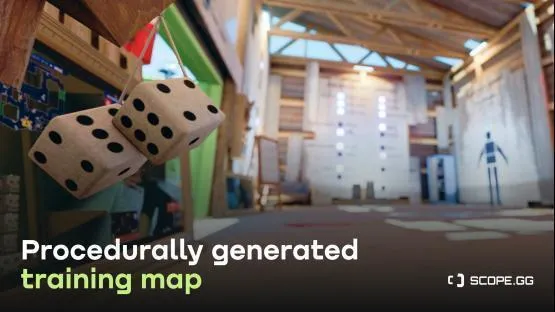
Procedurally Generated Training Map for CS2 builds a new run from elements of competitive maps each time. The room sequence, cover placement, and enemy positions change.
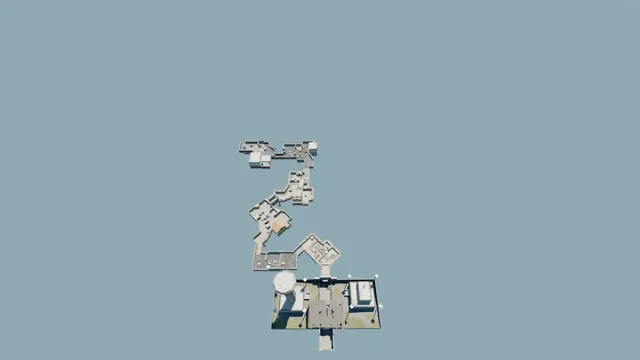
Bots strafe, throw flashbangs and attack when you least expect it. You can’t just memorize where to aim. The training is all about reacting to enemies in unknown positions and checking every angle.
The map was made by SCOPE.GG and OrelStealth. The CS2 version went live in the Workshop on September 26, 2026. It brings back a project from CS:GO: the first version came out in 2022 and gained over half a million subscribers. The new version adds co-op, elements from different competitive maps and more flexible bot settings.
How to download and launch the Workshop map
Subscribe to the map on Steam to install it. It’s about 230 MB, downloads automatically and appears in the Workshop Maps section in-game. Launching it through the CS2 menu creates a local server with bots.
- Open the Procedurally Generated Training Map page and subscribe.
- Wait for the download to finish in Steam.
- In CS2, open “Play,” then “Workshop Maps.”
- Select the map and launch it.
Console command to launch the map
In the game settings, enable “Enable Developer Console.” Open the console with the tilde key and enter host_workshop_map 3808451248. The command downloads the latest Workshop version and launches it on your server.
How to play a Workshop map with friends in CS2
The map supports co-op, so you can train together or run through generated locations as a team. To play together, use a lobby and a private match. As Valve’s FAQ explains, your friends don’t need to find the map’s Workshop page themselves. It’ll download automatically.
There’s also an easier option, added in March 2026: open the Workshop Maps tab in the Play menu, turn on Open Party, and launch the map. Friends can join you straight from your friends list. To restrict access, use the lobby method: choose Play with Friends, then select Private Match.
- Create a “Play with Friends” lobby.
- Invite the friends you want to play with.
- Select Procedurally Generated Training Map.
- Set the match to “Private.”
- Start a local server. The map will download automatically for your friends.
An update on September 29 fixed the second player’s health when they spawn.
What to choose in the settings room
Before you start, set your health, armor and ammo in the Player settings room. You can also pick up weapons from the Weapons rack and pistols from the table. The map’s labels are in English, so we’ve kept their names below as they appear in-game.
| Map option | Options | What it changes |
|---|---|---|
| Health restore on kill | 0, 25, 50, All | Health restored per kill: off, 25, 50 or full |
| Armor restore on kill | Yes, No | Turn armor restoration on kill on or off |
| Ammo | Default, Infinite, Restore on frag | Default ammo, infinite ammo or ammo restored on a kill |
| Health | 100 to 500 | Player health |
| Instant Death Prevention | Enable protection | Prevents instant death, including from knife bots |
| Weapons | Weapons from the rack and pistols from the table | Choose a weapon for the run |
You can also set the number of bots, enable headshots only, and choose a map style. Set the bot count in the settings. If you choose 50, the map warns that your FPS may drop further. Pick the maximum number of enemies based on how smoothly the game runs.
Health and health restoration are separate settings. Health sets your starting health, while Health restore on kill restores it after a kill. Restore on frag works the same way for ammo, while Infinite gives you unlimited ammo.
How to set up the map for aim training in CS2
You have to find the target, line up your aim and take the shot. Bot positions are random, and their movement and flashbangs stop you from clearing rooms from memory. Headshot-only mode adds targets at different heights and ranges, including strafing bots.
For a warm-up before a match
We’d start with 100 health and turn off health restoration on kills by setting Health restore on kill to 0. That way, mistakes while clearing angles still matter: your next frag won’t restore lost health. Focus on the angles and where bots appear instead of rushing through the rooms.
For headshot practice
Turn on headshot-only mode and set Ammo to Infinite. Unlimited ammo takes ammo management out of the equation, while the mode keeps you focused on headshots. Bots strafe and appear at different ranges and heights, so you’ll need to adjust your aim as you move through the map.
For your first run
If you’re new to the map, turn on Instant Death Prevention. Without it, a knife bot kills you instantly, which can cut short your attempt to learn a room. This setting lets you explore the map without that sudden punishment.
Change one setting at a time. For headshot practice, start with headshot-only mode and infinite ammo, and leave your health and bot count unchanged. That makes it easier to tell what’s affecting how the training feels.
Knife bots, stats and FPS drops
- Knife bots kill instantly if Instant Death Prevention is off.
- Knife kills don’t count toward the map’s stats.
- Choosing 50 bots triggers a warning about a bigger FPS drop.
- The September 28 update fixed cover that blocked paths in some rooms.
- The same update fixed bots shooting through a door in one of the Nuke rooms.
These changes are listed in the map’s update history. If the game starts to stutter with lots of bots, try lowering their number first. For other performance checks, see our CS2 FPS commands.
Don’t rely on extra health to protect you from a knife bot. To prevent instant death, turn on Instant Death Prevention.
FAQ
How do you download SCOPE.GG’s procedural map in CS2?
Subscribe to Procedurally Generated Training Map in the Steam Workshop to download it automatically. In CS2, open “Play,” then “Workshop Maps,” select the map and launch it. Or enter host_workshop_map 3808451248 in the console.
How do you play this map with friends?
Create a “Play with Friends” lobby, invite your friends, then select the map. Set the match to “Private” and start a local server. The map will download automatically for your friends.
Can you turn on headshot-only mode?
Yes, the map has a headshot-only mode. It’s designed for hitting headshots at different ranges and heights, including on strafing bots. For this kind of practice, you can set Ammo to Infinite.
Why does a knife bot kill in one hit?
Knife bots kill instantly on this map if Instant Death Prevention is off. Turn it on in the player settings. The option was added in the September 28 update.
How big is the map?
The map is about 230 MB. It downloads automatically after you subscribe in the Steam Workshop.