
What resolution do pro players use in CS2?
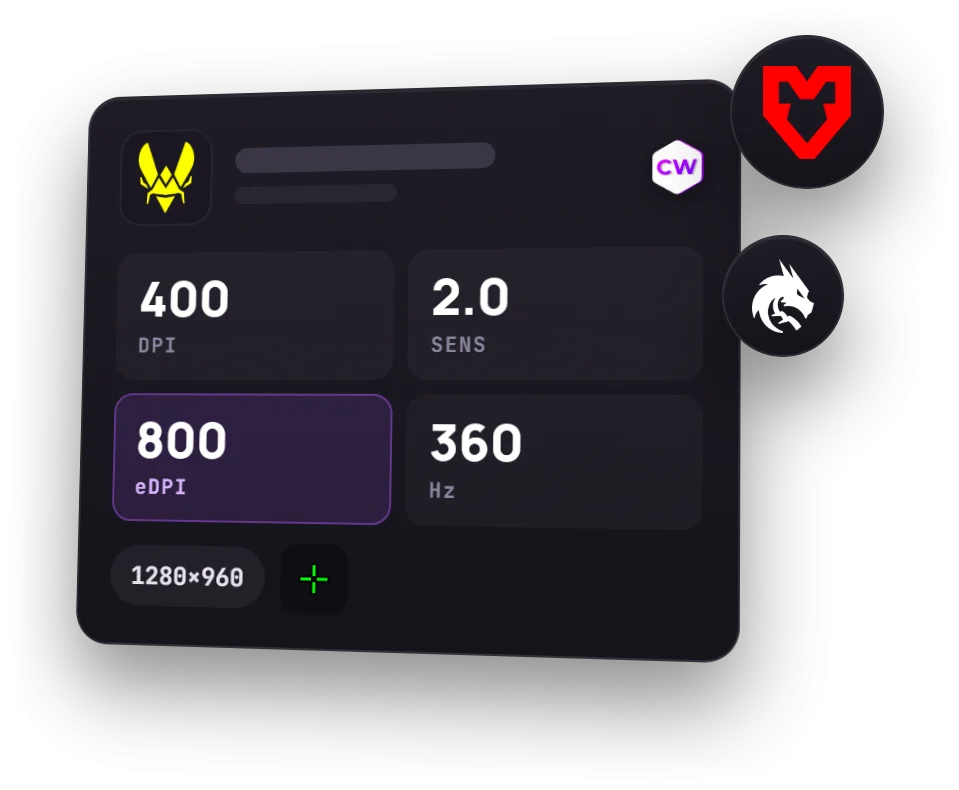
The most common resolution among CS2 pros is 1280x960 stretched to a widescreen monitor, and most of them use it. Data comes from the Caseway pro settings section (profiles from ProSettings.net and Liquipedia). The summary below and the tables in this article update along with it.
| Resolution | Players |
|---|---|
| 1280×960 | 114 |
| 1920×1080 | 20 |
| 1024×768 | 15 |
| 1280×1024 | 9 |
| 1680×1050 | 4 |
| 1152×864 | 3 |
| 1440×1080 | 3 |
| 1350×1080 | 1 |
Current rosters of top teams, where known: 169
But resolution is only part of the setup. To see how the screen looks, you also need the aspect ratio and the scaling mode. The same 1280x960 stretched and 1280x960 with black bars give different model shapes on a widescreen monitor.
- Players
- 169
- Resolution
- 1280×960, 67%
- Aspect ratio
- 4:3, 80%
- Scaling
- Stretched, 82%
- Monitor refresh rate
- 360 Hz, 33%
Which aspect ratios do pros use?
| Aspect ratio | Players |
|---|---|
| 4:3 | 135 |
| 16:9 | 20 |
| 5:4 | 10 |
| 16:10 | 4 |
Current rosters of top teams, where known: 169
4:3 is the most common aspect ratio in this sample. That’s a point of comparison, not proof that it’s best for every player. The profiles below include stretched images, black bars, and native monitor resolutions.
Not every player has filled in all settings in their profile, so each table has its own player count, listed below it.
4:3 vs. 16:9: how the image changes
When you select 4:3 in CS2, the game shows less on the sides than it does at 16:9: your horizontal field of view gets narrower. Stretching doesn’t bring those parts of the image back. It changes the shape of the image you can already see to fill the widescreen display.
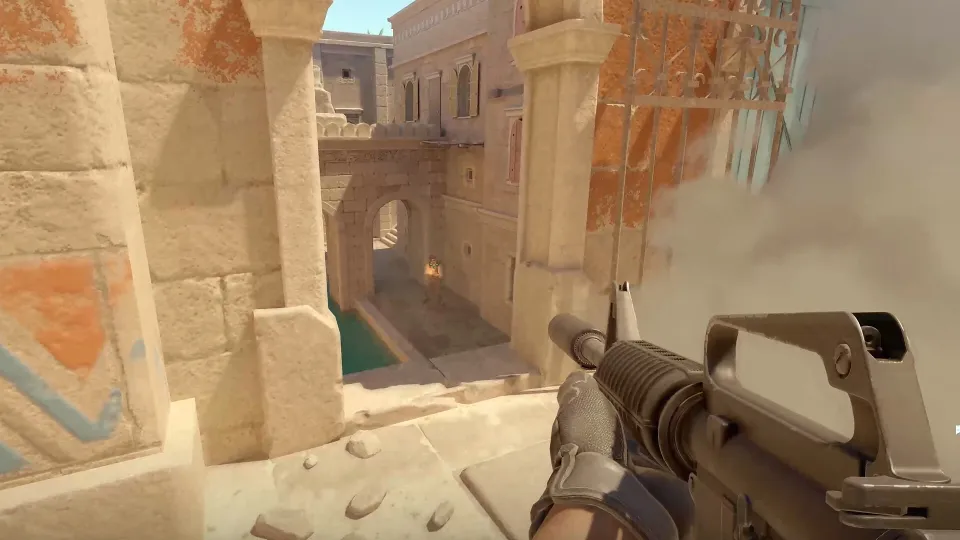
Why models look wider on a stretched screen
When a 4:3 image is stretched across a widescreen monitor, it expands horizontally. That makes player models look wider on screen. This only changes how the image is displayed: you still see less on the sides than you would at 16:9.
With 4:3 and black bars, the image keeps its original proportions. Dark bars fill the sides, and player models don’t get the horizontal stretch you see when the image fills a widescreen display. The narrower field of view is still a feature of 4:3.
| Option | What you see on the sides | What the image looks like |
|---|---|---|
| Stretched 4:3 | Less than at 16:9 | Fills the widescreen display; models look wider |
| 4:3 with black bars | Less than at 16:9 | Proportions stay intact; dark bars appear on the sides |
| 16:9 | More than at 4:3 | Wider horizontal field of view |
Stretched resolution, black bars, or native in CS2
Among display modes, stretched is the most common, while native resolution with black bars is used by a minority. These numbers describe what pros choose, but they don't decide which option will feel better for you.
| Scaling | Players |
|---|---|
| Stretched | 139 |
| Native | 21 |
| Black bars | 9 |
Current rosters of top teams, where known: 169
Aspect ratio and scaling answer different questions. Aspect ratio sets the image’s format; scaling determines how it fits on your screen. So “4:3” alone doesn’t tell you whether the image is stretched, while “native” means your monitor’s resolution, not a separate aspect ratio.
How to choose the setup that suits you
We’d start with what you want to change about the image, not your favorite player’s settings. If you want models to look wider on screen, compare stretched 4:3 with your current setup. If you want 4:3 without distorted proportions, try it with black bars.
- Stretched 4:3 suits players who prefer wider-looking models and an image that fills the widescreen display.
- 4:3 with black bars suits players who want to keep the image’s proportions and don’t mind dark bars on the sides.
- 16:9 suits players who’d rather see more space on the sides than have stretched models.
To compare stretching with black bars, keep the same 4:3 resolution and change only the scaling. That way, you won’t mix up changes to the resolution with changes to the image shape.
Pro monitor refresh rate
Almost all pros play on 240 Hz monitors or faster. The table shows how many players use each refresh rate. Look at monitor refresh rate separately from resolution: in the examples, pros use different resolutions with the same refresh rate.
| Monitor refresh rate | Players |
|---|---|
| 360 Hz | 55 |
| 600 Hz | 50 |
| 240 Hz | 35 |
| 400 Hz | 18 |
| 540 Hz | 8 |
| 144 Hz | 1 |
| 280 Hz | 1 |
Current rosters of top teams, where known: 168
You can see this in the player table below: their resolutions differ, but their monitors are often the same. If you also tune FPS, check the separate guide “CS2 FPS Commands”: a refresh rate table doesn't replace game settings.
donk, ZywOo, ropz, and other players’ resolutions
Below are examples from the pro settings section on Caseway (profiles from ProSettings.net and Liquipedia). The table updates along with it. For comparison, look at the whole setup: resolution, scaling, and monitor refresh rate.
| Player | Team | Resolution | Scaling | Monitor refresh rate |
|---|---|---|---|---|
| donk | Team Spirit | 1280×960 | Stretched | 600 Hz |
| ZywOo | Team Vitality | 1280×960 | Stretched | 600 Hz |
| m0NESY | Team Falcons | 1280×960 | Stretched | 600 Hz |
| NiKo | Team Falcons | 1280×960 | Stretched | 600 Hz |
| ropz | Team Vitality | 1920×1080 | Native | 600 Hz |
| sh1ro | Team Spirit | 1280×960 | Stretched | 600 Hz |
| frozen | FaZe Clan | 1280×960 | Stretched | 360 Hz |
| torzsi | MOUZ | 1280×960 | Stretched | 600 Hz |
| EliGE | Team Liquid | 1680×1050 | Stretched | 600 Hz |
1280x960 in CS2: the same resolution doesn’t mean the same setup
1280x960 stretched is the most common pro setup. But popularity doesn't tell you whether a narrower field of view suits you. First compare the image itself with 16:9, then decide whether to keep the setting.
The table shows that pros don't share one setup: some play at their monitor's native resolution, most use 1280x960 stretched, and only a few pick black bars. Copying a profile can give you a starting point to test, but it won't make you a better player on its own.
How to set up stretched 4:3
Stretched 4:3 requires two settings in different places. Choose the aspect ratio and resolution in CS2’s video settings, then set how the image fills your widescreen display in your graphics card’s control panel.
- Select 4:3 in the gameIn the CS2 video settings, set the aspect ratio to 4:3.
- Choose a resolutionChoose a resolution in that format, such as 1280x960 or 1024x768.
- Enable stretchingIn your graphics card’s control panel, set scaling to “Full-screen” for NVIDIA or “Full panel” for AMD.
- Check it in-gameThe image fills the widescreen display and stretches horizontally, with no dark bars on the sides.
Selecting 4:3 in the game doesn’t enable stretching by itself. If the image keeps its proportions and you see black bars on the sides, check the scaling settings in your graphics card’s control panel. You don’t need to change the resolution to remove the bars: resolution and image scaling are separate settings.
Stretching works in Fullscreen mode. Check Display Mode under the Video tab, then open Graphics. In the NVIDIA Control Panel, set scaling to Full-screen and choose GPU as the scaling device. After changing resolution, check the refresh rate; it may reset to 60 Hz.
Frequently asked questions
What resolution do pro players use in CS2?
The most common resolution among CS2 pros is 1280x960, usually stretched: most players choose it. Next come the native 1920x1080 and 1024x768, far behind. The full list is in the resolution table above. To understand how the picture looks, check the scaling mode along with the resolution.
Which is better in CS2: 4:3 or 16:9?
16:9 shows more space on the sides, while stretched 4:3 makes models look wider on screen. With 4:3 and black bars, proportions stay intact, but your horizontal field of view is still narrower than at 16:9. We’d choose based on which image feels better to play with: a wider view or the way models look in your usual setup.
What resolution does donk use?
donk’s profile on the site lists 1280x960, stretched scaling, and a 600 Hz monitor (ProSettings.net data from October 1, 2026). You can view these settings on donk’s settings page. A profile is a useful reference, but it doesn’t guarantee the player hasn’t changed their settings.
How to stretch 4:3 in CS2
In the CS2 video settings, pick the aspect ratio 4:3 and a suitable resolution. Then turn on scaling with the “Watch on Fullscreen” option in the NVIDIA Control Panel, or “Full panel” in the AMD panel. Stretching to widescreen is set in the GPU control panel, not by choosing 4:3 in the game alone.