
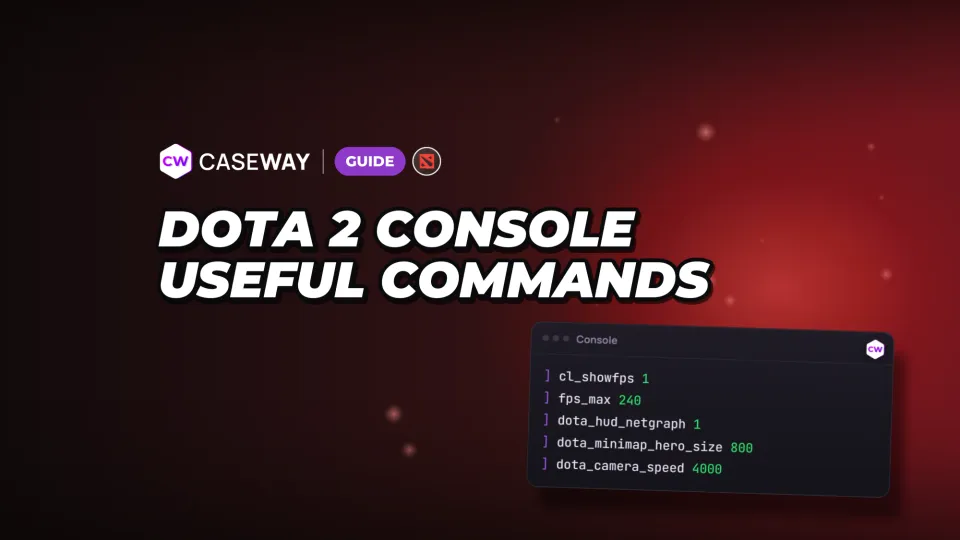
Dota 2 console commands for the interface and controls marked cheat require sv_cheats 1 in your own lobby. Commands marked developmentonly aren't available to players. Start by enabling the console, then choose the settings you need. We wouldn't copy someone else's entire config: along with an FPS counter, you could end up with unfamiliar camera and order behavior.
- Console
- Turn on Enable console in settings and assign a key separately.
- FPS
- cl_showfps 1 turns on the FPS counter.
- Camera
- dota_camera_distance requires sv_cheats 1.
- Config
- Run a file in game/dota/cfg with the exec command.
How to enable the console in Dota
Turn on Enable console in the game settings, then assign a key to Console in the keybinds. These are separate options: one enables the console, and the other opens it.
- Open the Dota 2 settings and turn on Enable console. That's the option's name in the English localization.
- Find Console in the keybinds and assign a key.
- Press that key and enter cl_showfps 1 to test it. The FPS counter will appear at the top of the screen.
Another option is to add -console or -dev to the game's launch options. Both enable the console and override the Enable console setting. This behavior is documented in the Dota 2 localization files. You still need to set a key to open the console.
Commands that work without cheats
Console variables have flags that explain why one setting persists after you quit while another can't be changed in a regular match. Any restrictions for the commands below are listed alongside what they do.
- cheat
- Requires sv_cheats 1. Use these settings only in your own lobby.
- archive
- The value is saved in your settings.
- per_user
- This setting is account-specific.
- developmentonly
- This command or variable isn't available to players.
dota_camera_distance is marked cheat, and its default value is 1200. You can't change the camera distance with this variable in a regular game. The restriction is listed in the Dota 2 console dump.
Don't confuse camera speed with camera distance. dota_camera_speed changes how fast the camera moves, while dota_camera_distance is marked cheat and requires sv_cheats 1 in your own lobby.
How to show FPS and network stats in Dota 2
Enter cl_showfps 1 to show FPS at the top of the screen. The counter has several modes, including smoothed FPS and server latency in milliseconds. To show network stats on screen, use the separate dota_hud_netgraph variable.
- Turns on the FPS counter. Default: 0, counter off.
- Sets the FPS cap. Default: 120.
- Sets the FPS cap while the interface is open. Default: 0.
- Shows network stats on screen. Default: false; the value is saved.
In Dota 2, fps_max sets the FPS cap, while the counter shows your actual frame rate. The command can't guarantee the game will reach your chosen value. Use cl_showfps 4 for a counter that logs to a file. Mode 1 is enough to check FPS during a match.
Minimap icon size and camera behavior
You can adjust hero icon size on the minimap and prevent accidental movement orders there. dota_minimap_misclick_time sets how long after you move the cursor over the minimap the game ignores movement orders. The default is 0.2 seconds.
Some commands from older lists no longer work: dota_portrait_animate, dota_cheap_water, cl_smooth, and dota_minimap_creep_scale are developer-only, dota_camera_disable_yaw requires sv_cheats, and Dota 2 lacks net_graph—dota_hud_netgraph 1 turns on network stats instead. These still work and persist between launches: dota_hud_extra_large_minimap (larger minimap), dota_minimap_disable_rightclick (disables right-click commands on the minimap), dota_screen_shake (screen shake), and dota_player_smart_multiunit_cast.
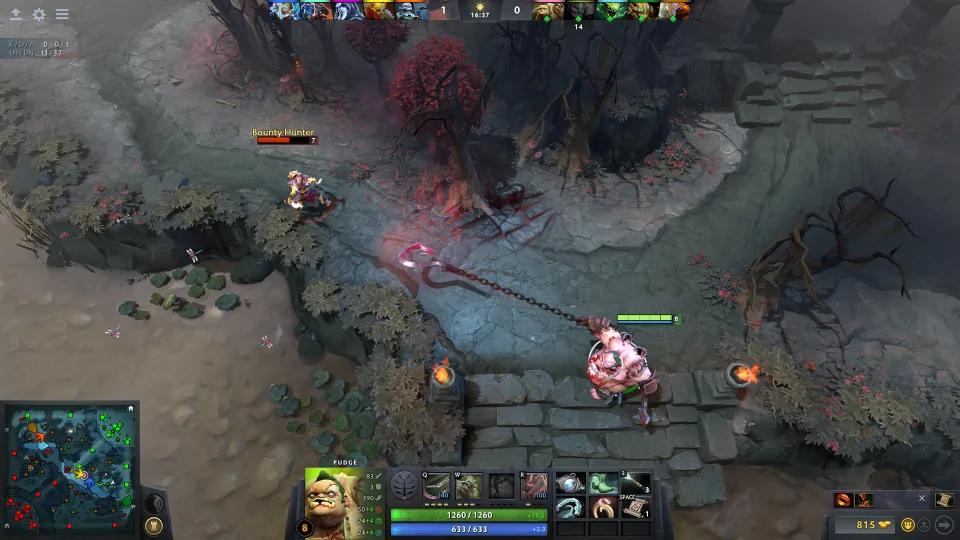
- Hero icon size on the minimap. Default: 600.
- Delay before movement orders are accepted after you move the cursor over the minimap. Default: 0.2.
- Camera movement speed. Default: 3000.
- Disables camera zoom changes. Default: false.
- Disables the camera snapping back to your hero after respawning. Default: true.
- Makes the camera follow your hero while you hold the hero select key. Default: false.
All settings in this section are marked archive. When adjusting camera speed, change only that value and leave the rest alone. That makes it easier to see whether moving around the map feels right, and to restore the original value of 3000 if the new speed gets in the way.
Right-click orders, quickcast, and Alt tooltips
Holding the right mouse button can repeat an order. Alt tooltips show rune spawn times, neutral creep camp stack times, and tower attack range. The settings below are saved. Alt tooltips and quickcast are enabled by default.
- Sets right-click attack behavior. Default: 0.
- Repeats an order while you hold the right mouse button. Default: false.
- Enables quickcast. Default: true.
- Shows rune spawn times when you hold Alt. Default: true.
- Shows neutral creep camp stack times and an arrow when you hold Alt. Default: true.
- Shows tower attack range when you hold Alt. Default: true.
- Reduces flashes in effects. Default: false.
- Sets the interface color mode. Default: 0.
Your own command file: cfg folder, exec, and saving
Config files are stored in game/dota/cfg. If you're looking for a Dota 2 autoexec, the autoexec.cfg file in this folder runs every time you start the game. Use exec autoexec.cfg to load it without restarting. To check that it works on your computer, add the line echo autoexec_ok to the file, then open the console after launching the game.
- Create a text file with the .cfg extension in the game/dota/cfg folder. For example, name it autoexec.cfg.
- Add the commands you need, one per line. To test it, you can start with cl_showfps 1 and dota_hud_netgraph true.
- Open the console and enter exec autoexec.cfg.
- Use host_writeconfig to save your config. Variables marked archive are saved in your settings.
- Runs a command file from the config folder. Replace the argument with your file's name.
- Writes the config.
- Binds a command to a key. To open the console with your preferred key, run bind <key> toggleconsole, for example bind F11 toggleconsole.
- Unbinds the specified key.
Before changing a setting, note its original value next to the command. That makes it quicker to restore your usual camera or controls than to track down the cause of a problem in a large config.
Commands for your own lobby
sv_cheats is off by default. Set it to 1 in your own lobby to unlock settings marked cheat. Commands that create units, spawn runes, or add bots have a separate client_can_execute flag. Use them only in your own lobby.
- Enables settings marked cheat in your own lobby. Default: false.
- Command to create a unit, marked client_can_execute.
- Command to spawn a rune, marked client_can_execute.
- Command to add bots, marked client_can_execute.
The client_can_execute and cheat flags describe different things. The first controls whether the client can run a command; the second means cheats must be enabled. For dota_camera_distance, check the cheat flag.
All commands in this guide
| Command | Default | What it does | Saved |
|---|---|---|---|
| cl_showfps | 0 | 1 — FPS, 2 — smoothed FPS, 3 — server latency, 4 — FPS logged to a file | no |
| fps_max | 120 | FPS cap; 0 — no cap | yes |
| fps_max_ui | 0 | FPS cap while the interface is open | yes |
| dota_hud_netgraph | false | on-screen network stats | yes |
| dota_minimap_hero_size | 600 | hero icon size on the minimap | yes |
| dota_minimap_misclick_time | 0.2 | how many seconds movement orders are ignored after you move the cursor over the minimap | yes |
| dota_camera_speed | 3000 | camera speed | yes |
| dota_camera_accelerate | 49 | camera acceleration | yes |
| dota_camera_disable_zoom | false | disable zooming with the mouse wheel | yes |
| dota_camera_edgemove | true | move the camera when the cursor reaches the edge of the screen | yes |
| dota_reset_camera_on_spawn | true | center the camera on your hero after respawning | yes |
| dota_camera_hold_select_to_follow | false | hold the hero select key to make the camera follow them | yes |
| dota_camera_distance | 1200 | camera distance; requires sv_cheats | cheat |
| dota_force_right_click_attack | 0 | right-clicking an ally issues an attack order | yes |
| dota_player_auto_repeat_right_mouse | false | repeat an order while holding the right mouse button | yes |
| dota_ability_quick_cast | true | quickcast | yes |
| dota_hud_reduced_flash | false | reduce flashes in effects | yes |
| dota_hud_colorblind | 0 | interface color mode | yes |
| sensitivity | 1.25 | mouse sensitivity | yes |
| volume | 1 | sound volume(0–1) | yes |
| snd_musicvolume | 1 | music volume(0–1) | yes |
Dota 2 console dump (SteamDatabase, DumpSource2), 09.10.2026. “Saved” means the archive flag; “cheat” means the command only works with sv_cheats 1 in your own lobby.
FAQ
How to enable the console in Dota 2
Turn on Enable console in the game settings and assign a key to Console. You can also enable the console with the -console or -dev launch option. Either one overrides the setting.
How to show FPS in Dota 2
Enter cl_showfps 1 to show the counter at the top of the screen. Value 2 shows smoothed FPS, and 0 turns the counter off. For network stats, use dota_hud_netgraph true.
Can you zoom out in Dota 2 with a command?
You can't change the camera distance with dota_camera_distance in a regular game. The variable is marked cheat and requires sv_cheats 1 in your own lobby. The default camera distance is 1200.
How to save your commands in Dota 2
Save your commands in a .cfg file in game/dota/cfg, then run it with exec. Variables marked archive are saved in your settings. Use host_writeconfig to write your config.