
- App
- The official Rust companion app for iOS, Android, and browsers.
- Linking
- In the Rust+ tab of the game menu while you’re on the server.
- Devices
- Smart Switch controls power; Smart Alarm sends notifications.
- Cameras
- They only work when you’re not connected to the server.
- Connection
- A closed TCP port on the companion server can stop the app from connecting.
What is the Rust+ app, and where can you use it?
Rust+ links your phone to a Rust server. Facepunch released the official companion app on June 4, 2020. From your phone, you can check server status, chat with your team, and control connected electrical devices at your base.
The app is available on iOS, Android, and in a browser. Get the App Store and Google Play versions or open the web app from Facepunch’s Rust+ page.
What you can see on your phone: servers, the map, and team chat
After linking, Rust+ shows the number of players on the server, the in-game time, and which teammates are online. You can choose whether to get notifications when a teammate joins. The app also notifies you when you die while you’re out of the game.
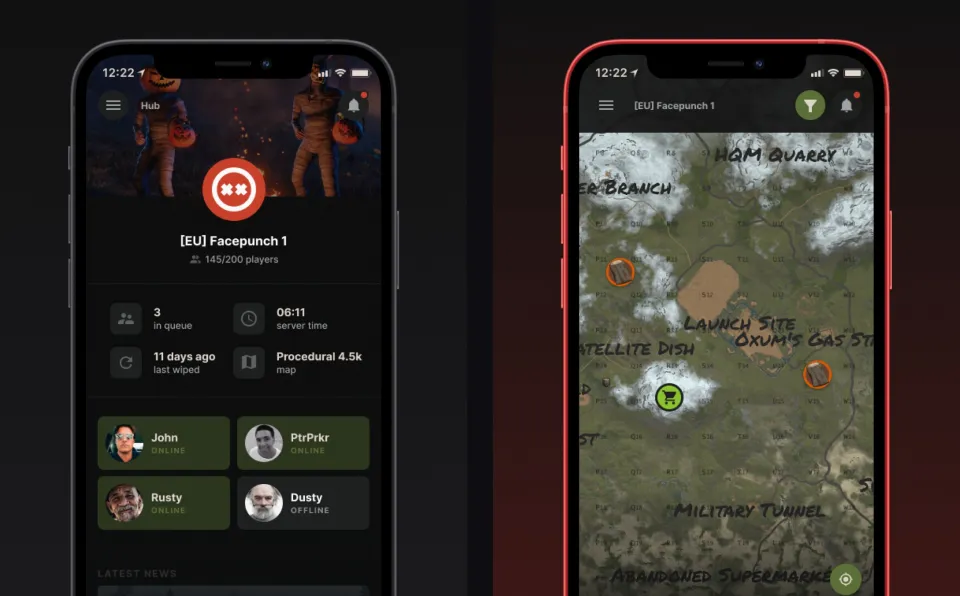
- The server map shows points of interest and teammates. Vending machine markers from the Power Trip update (06.08.2026) don't show up in Rust+.
- Markers for events—the attack helicopter, cargo ship, and traveling vendor—also aren’t sent to Rust+ in that update.
- Team chat messages appear in both the app and the game.
- Linked Smart Switch and Smart Alarm devices connect the app to your base’s electrical circuits.
How Rust+ works with IFTTT
IFTTT support was added on June 3, 2021. Through the service, a Smart Alarm signal can turn on a real lamp or alarm clock, triggering an action outside the game.
- Link your servers in Rust+.
- Sign in to IFTTT.
- Link Rust+ to IFTTT on Rust’s service page.
You can’t control Smart Switch through IFTTT. The Rust service on IFTTT only receives in-game events, such as a Smart Alarm being triggered. You can turn Smart Switch on and off in Rust+.
How to link a server to your phone
First, link the server to the app on your phone. Base electrical devices are paired separately, after the server is connected. Look at a device, hold E, then choose the pairing option.
- Join the server you want to link and open the Rust+ tab in the game menu.
- Start the pairing process and confirm the request in the Rust+ app on your phone. Don’t disable app notifications entirely; server and device pairing relies on them.
We’d start by checking the server details in the app. If they show up, you can move on to connecting devices. That makes it easier to tell a connection issue from a problem with the electrical circuit.
Smart devices in electrical circuits
Connect Smart Switch and Smart Alarm to your base’s electrical circuits, then link them to Rust+. Each device has a different job: the switch controls power, while the alarm sends a notification when it receives a signal.
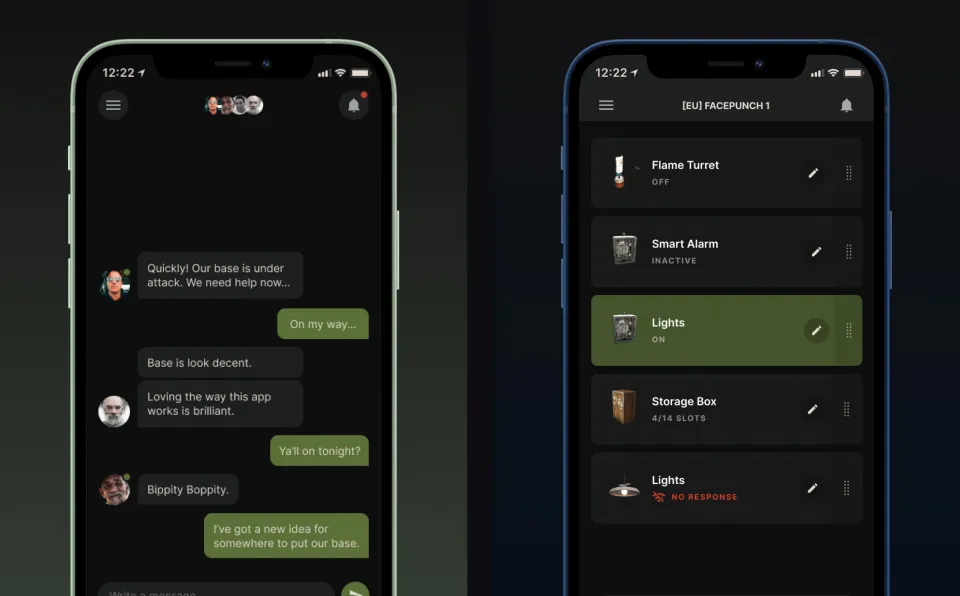
Smart Switch turns power on and off
Smart Switch turns power on and off when you control it from Rust+. To use it from your phone, connect the switch to your base’s electrical circuit and link it to the app.
When Smart Alarm sends a notification in Rust
Smart Alarm sends a customizable push notification when it receives a signal from an electrical circuit. You’ll need to connect the alarm to your base’s circuit, then link it to Rust+.
Everyone who paired the alarm receives the alert as long as they have building privilege in that base. Smart Switch is protected too: only players with building privilege can turn it on or off manually in-game.
Devices: what they do, power use, and research
| Device | What it does | Power use | Research | Workbench |
|---|---|---|---|---|
| Smart Switch | Turns power on and off through Rust+; Switch On and Switch Off inputs | — | 20 scrap at the Research Table, page in the Workbench Tree | 2 |
| Smart Alarm | Sends a notification to your phone when it receives power | 1 rW | 40 scrap at the Research Table, page in the Workbench Tree | 2 |
| Storage Monitor | Attaches to a cupboard or large box and monitors its contents; sends a pulse through its output when they change | 1 rW | 40 scrap at the Research Table, page in the Workbench Tree | 2 |
Consumption: Facepunch wiki, 08.10.2026; research and workbench: server files, November 7, 2026.
Our Rust electricity guide can help you plan your base’s circuits.
Rust+ cameras: when you can view your base
Camera viewing on phones arrived in the alpha version on March 2, 2023. Rust+ lets you add cameras from a linked server, including controllable ones.
Access rules changed on May 4, 2023, to combat bots.
- Rust+ cameras only work when you’re not connected to the server.
- You can’t view static cameras, such as oil rig cameras, through Rust+.
- By default, players show up on camera from up to 30 m away, and their names from up to 10 m.
- The server owner can change these distances.
- Crate and explosion markers no longer appear on the Rust+ map.
Before viewing cameras, disconnect from that server in-game. You can’t view them through Rust+ while you’re connected to the server.
Rust+ isn’t working: what server owners should check
Rust+ connects to the game server through a separate companion server on a TCP port. If that port is closed, the app can’t connect. The server then takes a long time to load in Rust+ and appears offline.
The server automatically checks its connection to Rust+. If the check fails, Rust+ is disabled on that server. Players can see this in the Rust+ tab in-game, and the server log will show: «Rust+ companion server connectivity test failed! Disabling Rust+ features.» The server needs internet access to companion-rust.facepunch.com, and the port must be 10000 or higher. To disable Rust+ intentionally, set app.port -1 in the startup parameters. Because of command-line parsing, write it as +app.port 1-.
By default, the server uses whichever is higher: the game port plus 67 or the RCon port plus 67. If you haven’t changed the settings, the port will be 28082. Run app.info to see the current port. Facepunch’s companion server wiki covers the network settings.
- Shows companion server details, including its port.
- Changes the companion server’s port. You’ll need to restart the server afterward.
- Sets the address for complex network setups.
- Sets the public address for complex network setups.
Check that the companion server’s TCP port is accessible. If you change it with app.port, restart the server. For help setting up the server itself, see our Rust server setup guide.
Frequently asked questions
How do I link Rust+ to a server?
Join the server, open the Rust+ tab in the game menu, then confirm the link in the app on your phone. Check the server details in Rust+ afterward. Smart Switch and Smart Alarm need to be paired separately.
What does Smart Alarm do in Rust?
Smart Alarm sends a customizable push notification when it receives a signal from an electrical circuit. Connect it to your base’s circuit, then link it to Rust+. With IFTTT, its signal can also turn on a real lamp or alarm clock.
Can I view cameras through Rust+?
Yes, but you need to leave the server first. Rust+ gives you access to cameras linked to the server, including controllable ones. Static cameras, such as those on oil rigs, aren’t available. By default, players show up on camera from up to 30 m away, and their names from up to 10 m.
Why can’t Rust+ find my server?
One possible cause is a closed TCP port on the companion server. The server will then take a long time to load in the app and appear offline. Owners can use app.info to find the port and check whether it’s accessible. If you change it with app.port, restart the server.