
Rust console commands have different access requirements. Players can check their connection or save their settings, but they can't manage someone else's server without admin permissions. Find the action you need in the lists below, then enter the command in the console. Any required arguments are listed alongside it.
- Console
- Press F1 to open it, even when you're not connected to a server.
- Search
- Use find and part of a name to find matching commands.
- Stats
- fps shows FPS, ping shows ping, and combatlog opens the damage log.
- Permissions
- ownerid grants level 2 permissions; moderatorid grants level 1.
- Saving
- writecfg saves player settings; server.writecfg saves server settings.
How to open the console in Rust
Press F1. You can open the Rust console while playing on a server or without connecting to one. The April 2026 Spring Clean update changed the F1 menu: it added a screen listing all commands, and you can now adjust the text size with CTRL and the mouse wheel.
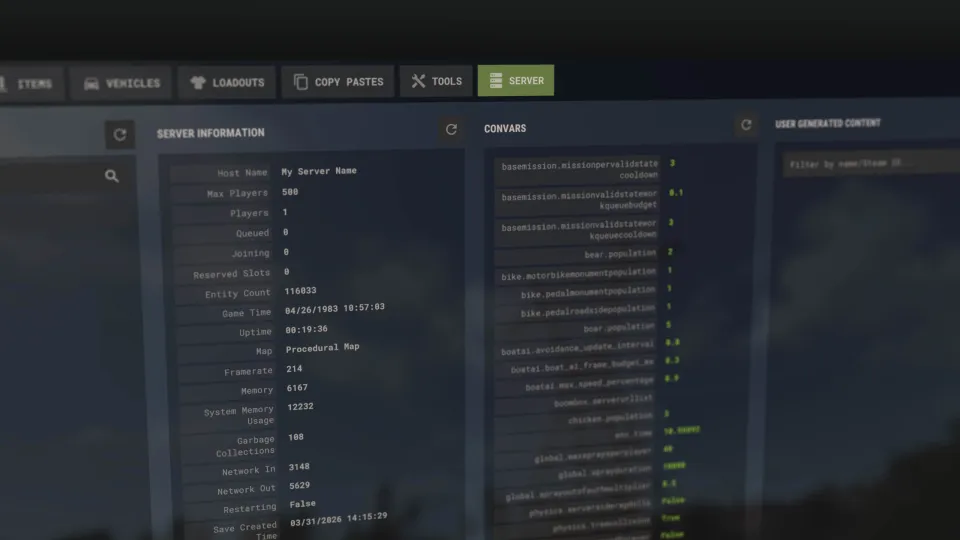
Admins now get autocomplete for server settings. The new menu also has tabs for items, including favorites and recent items; the server, with player locations and teleport and mute buttons; building copies; and loadouts. See the Facepunch Spring Clean announcement for details.
To switch back to the old F1 menu, enter client.legacyconsoletoggle. The developers have said they plan to remove it, so it's best to get used to the new console.
How to find a command by part of its name
Enter find followed by part of a name. The console will show matching commands and settings, along with their descriptions. This is easier than trying to remember the full setting name. You can also open the screen listing all commands in the new F1 menu.
The (Generated) label means the description was generated by AI because none existed before.
Player commands: FPS, ping, and the damage log
These commands don't require admin permissions. Use fps to show a one-time FPS readout, or perf for persistent stats in the bottom-left corner. combatlog shows who you hit and who hit you. See the Facepunch command reference for keybinds.
- Die and go to the respawn screen, as with the Suicide option in the menu
- Show the damage log for damage dealt and taken
- Show current FPS
- Set the FPS limit
- Hide the stats in the bottom-left corner
- Show stats in the bottom-left corner
- Show your ping to the server
- Toggle the network graph
- Connect to a server by address. Use localhost for your own local server
- Connect without printing the address in the console
- Perform an emote: wave, victory, shrug, thumbsup, chicken, hurry, or whoa
- Mute a player for yourself
- Unmute a player
- Show your muted players list
- Show the game version
- Run a performance test
- Save the map as a PNG image
- Show your coordinates
- Save settings and binds to files
- Clear the console
- Copy console text
- Quit the game
Each perf level adds more stats. perf 4 shows FPS, frame time, memory, and ping. Use perf 1 to show only FPS, or perf 0 to hide the stats.
Rust Admin Commands: Permissions, Bans, and Player List
Player management commands are for admins on their own server. ownerid Steam64ID grants level 2 permissions, while moderatorid Steam64ID grants level 1. Since May 2026, these commands grant permissions immediately, with no need for the player to reconnect.
- Grant level 2 permissions
- Grant level 1 permissions
- Revoke level 2 permissions
- Revoke level 1 permissions
- Ban a player. Example duration: 1M7d5m means 1 month, 7 days, and 5 minutes
- Ban by Steam64ID; the player doesn't need to be on the server
- Unban a player
- Show bans
- Show bans with reasons
- Kick a player with a reason. They can reconnect right away
- Kill a player
- Show players on the server
- Show players on the server
- Show players, playtime, and IP addresses
- Show players' kills, deaths, and playtime
- Send a chat message as the server
In ban durations, M means months, d means days, and m means minutes. Don't confuse kick with ban: kick disconnects a player but doesn't stop them from coming back.
Movement, objects, and time of day
The next group covers admin tools for managing the world. For movement, there’s noclip and several teleport options. For items and entities, you can give or spawn them, check ownership, and remove them. ent commands affect the entity you’re looking at, while del removes every entity of the specified type on the server.
- Enable noclip
- Toggle god mode, which prevents hunger and thirst
- Use free camera
- Teleport to a player; with two player names, teleport the first to the second
- Teleport a player to you
- Teleport to a map marker
- Teleport to coordinates
- Teleport to any object of the specified type
- Teleport to the nearest object of the specified type; added in February 2026
- Teleport to the nearest object in your line of sight
- Spawn an item or object where you're looking
- Spawn an item or object where you're looking
- Give yourself an item by shortname
- Give an item to a specified player
- Give an item to every player on the server
- Give yourself an item by numeric ID
- Destroy the entity you’re looking at
- Lock a code lock or key lock
- Unlock a code lock or key lock
- Show the Steam64ID of the player who placed the entity
- Remove all entities of this type from the server. Find the path with debug.lookingat
- Spawn the Patrol Helicopter
- Spawn the Patrol Helicopter at your location
- Spawn Bradley at Launch Site
- Set the weather to clear
- Show the current weather
- Set the time of day for the server
- Change the time of day for yourself only
- Restore health, hunger, and hydration to full
- Heal by the specified amount
- Take damage equal to the specified amount
Don't use del instead of ent kill to remove a single object. ent kill destroys the object you're looking at, while del removes every object on the server that matches the specified path.
Server settings: upkeep, crates, and helicopters
Some commands only work in the server console. An admin can run them in-game with the sv prefix, for example, sv say message. Make sure you're using the right command: quit closes the game, while sv quit saves and shuts down the server.
- Building decay rate multiplier
- How many minutes of upkeep payment buys. A higher value makes upkeep cheaper
- How many minutes the Tool Cupboard keeps paying upkeep for the base after it's destroyed
- Time it takes to hack a locked crate, such as one at an Oil Rig
- Helicopter decay time when sheltered
- Helicopter decay time outdoors
Use server.writecfg to save server settings to files. Don't confuse it with writecfg, which saves a player's settings and binds.
How to disable Air Wolf helipad repairs
Starting in October 2026, the Air Wolf helipad at Bandit Camp will need repairs at the start of a wipe. Server owners can disable this requirement or change the helipad's condition with the commands below.

- Disable the helipad repair requirement
- Set the helipad as broken or repaired
How to bind a command to a key
You can bind any command to a key with bind. For example, bind k kill runs kill when you press K, killing your character and taking you to the respawn screen. To avoid triggering it by accident, you can bind it to two keys: bind [leftshift+k] kill.
After changing your settings, run writecfg to save your settings and binds to files. Binding a key doesn't grant admin permissions; access to the command stays the same.
Frequently asked questions
How do you open the console in Rust?
Press F1 to open the console, either in-game or without connecting to a server. Use client.legacyconsoletoggle to switch to the old menu, but the developers have said they plan to remove it.
How do you show FPS in Rust?
Enter fps to see your current FPS. Use perf 1 to keep it visible in the bottom-left corner, or perf 0 to hide it.
How do you grant admin permissions in Rust?
On your own server, use ownerid Steam64ID for level 2 permissions or moderatorid Steam64ID for level 1. Since May 2026, permissions take effect immediately, with no need to reconnect. These commands aren't available on someone else's server unless you have the required access.
How do you kill yourself in Rust using the console?
Open F1 and enter kill. Your character will die and go to the respawn screen, just like using the Suicide option in the menu.
How do you connect to a Rust server by IP?
Enter connect IP:port, replacing the placeholders with the server's address and port. For your own local server, use localhost. The connecthidden command lets you connect without printing the address in the console.